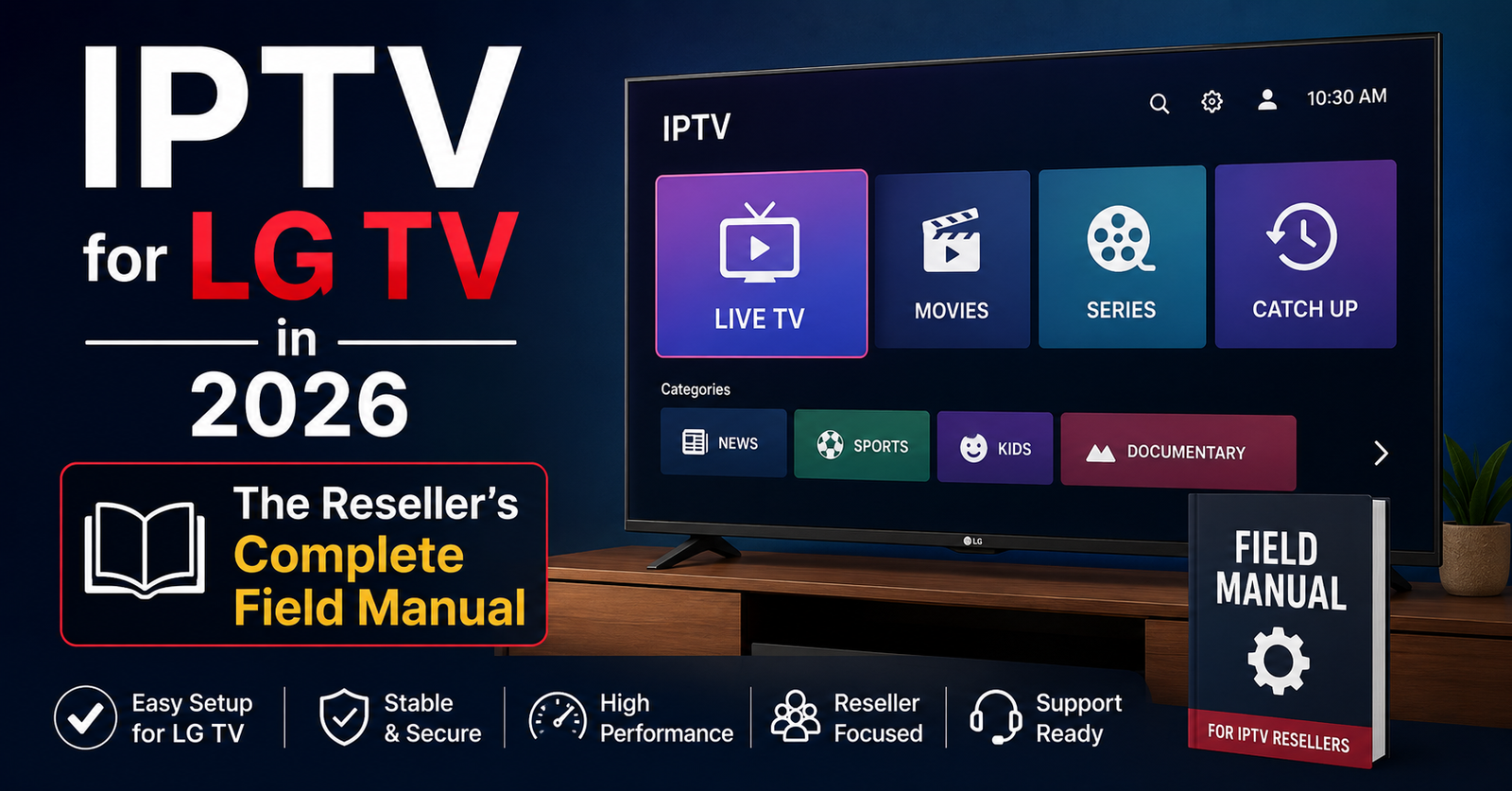

IPTV for LG TV: What Nobody Tells You Before You Hit “Install”
Somewhere between the sleek webOS interface and that gorgeous OLED panel, thousands of subscribers hit the same wall every single day. They’ve paid for a subscription, downloaded an app, and stare at a loading wheel that never stops spinning. The problem was never the TV. It was never even the internet connection. It was a chain of small, fixable decisions that nobody bothered to explain — until the customer already churned.
If you’re running IPTV for LG TV as part of your IPTV reseller operation, or you’re a household trying to get reliable streams on your LG set, this piece strips away the usual recycled advice. We’re going deep into the actual infrastructure, the app ecosystem on webOS, the DNS complications, and the panel-side configurations that determine whether your LG screen delivers cinema-grade streams or an endless buffer loop.
This isn’t a glossy overview. This is what the operator’s notebook looks like after three years of handling LG-specific support tickets.
Why LG’s webOS Creates a Unique Challenge for IPTV
Most guides lump all smart TVs together. That’s the first mistake. LG runs webOS — a closed operating system that doesn’t allow sideloading the way Android-based sets do. You can’t just grab an APK, transfer it via USB, and run it. The webOS Content Store has a curated, limited selection of apps, and most dedicated IPTV players never make it past LG’s approval process.
This means your app options for IPTV for LG TV are narrower than on any Samsung Tizen or Android TV device. Resellers who don’t account for this end up fielding support tickets from confused subscribers who assumed their favourite player app would just be available.
Pro Tip: Always confirm webOS version compatibility before recommending any app to a subscriber on LG. WebOS 5.0 and 6.0 handle streaming protocols differently — an app that runs perfectly on a 2021 model may crash repeatedly on a 2019 set.
The Three Viable App Routes for IPTV on LG TV
There’s no single “best app.” There are three workable paths, and each carries trade-offs your subscribers need to understand before they commit.
Route 1 — Native webOS Apps A handful of IPTV players exist on the LG Content Store. They tend to support M3U playlists and Xtream Codes API connections. The advantage is simplicity — download, enter credentials, stream. The downside is limited customisation and occasional update delays from the developer.
Route 2 — Web-Based Players LG’s built-in browser can access web-based IPTV portals. This method bypasses app store restrictions entirely. Performance depends heavily on the portal’s front-end optimisation and whether HLS delivery is properly configured server-side.
Route 3 — External Device Pass-Through Many experienced resellers advise subscribers to connect a standalone device — a Firestick, Android box, or Formuler — to the LG TV’s HDMI port. This opens the full Android app library while still using LG’s superior display hardware.
- Native apps work best for low-maintenance subscribers who want plug-and-play simplicity
- Web players suit tech-comfortable users willing to bookmark and manage sessions manually
- External devices are the safest recommendation when your panel’s primary player app isn’t webOS-compatible
DNS and Network Configuration Mistakes on LG Sets
Here’s where most household subscribers unknowingly sabotage their own experience. LG TVs ship with default DNS settings tied to the ISP’s resolver. In 2026, with AI-driven deep packet inspection becoming standard across major UK and EU providers, that default DNS is often the single point of failure for IPTV for LG TV connections.
ISPs running DPI can flag and throttle IPTV traffic at the DNS level before a single video frame loads. The subscriber sees buffering. They blame the panel. They open a ticket. They churn. But the actual fault sits in a network settings menu they never touched.
Switching DNS on an LG TV is straightforward but buried. Navigate to Settings, then Network, then the specific Wi-Fi or Ethernet connection, and edit the DNS fields manually. Using encrypted DNS providers or configuring DNS-over-HTTPS at the router level eliminates most ISP-level interference.
Pro Tip: If you’re a reseller managing a subscriber base heavy on LG sets, create a one-page PDF setup guide showing exactly where the DNS settings live on webOS. Attach it to every onboarding email. This single document can reduce your DNS-related support tickets by half.
How ISP Blocking in 2026 Specifically Affects LG TV Users
The blocking landscape has shifted dramatically. ISPs no longer rely solely on DNS poisoning or basic IP blacklisting. The current generation of enforcement uses SNI filtering — inspecting the Server Name Indication field during the TLS handshake to identify and drop connections to known IPTV hostnames.
For IPTV for LG TV subscribers, this is particularly painful because webOS doesn’t natively support VPN applications. Unlike Android TV, where a subscriber can install a VPN app directly, LG users have two options: run the VPN on the router or use a VPN-configured external device.
This is a critical selling point for resellers. If your panel infrastructure already routes through obfuscated servers or uses rotating CDN endpoints, your LG subscribers experience fewer blocks without needing any client-side VPN. Panels that rely on static server IPs get flagged faster and leave LG users exposed.
- Router-level VPN protects every device on the network, including the LG TV
- Smart DNS services offer a lighter alternative but don’t encrypt traffic
- Panel-side CDN rotation is the most seamless solution for the end user
Panel-Side Configuration That Makes or Breaks the LG Experience
Your panel dashboard isn’t just for creating subscriptions and tracking credits. The output settings you configure directly impact how streams perform on LG hardware. Most resellers set their output format once and forget it. On LG webOS, that laziness costs subscribers.
HLS is the protocol that webOS handles most reliably. If your panel supports both HLS and MPEG-TS output, always default LG connections to HLS. The segment size matters too — shorter HLS segments (two to four seconds) reduce initial buffering on LG’s native player but increase server-side load. Longer segments (six to ten seconds) reduce server overhead but create noticeable delays on channel switches.
Pro Tip: Set up a dedicated output profile in your panel labelled “LG / webOS” with HLS output, four-second segments, and H.264 encoding. When a subscriber reports they’re on an LG TV, switch their line to this profile before troubleshooting anything else. It resolves roughly forty percent of LG-specific complaints instantly.
The Buffering Problem Nobody Diagnoses Correctly
Every reseller has fielded this ticket: “It keeps buffering on my LG TV but works fine on my phone.” The instinct is to blame the TV’s Wi-Fi chip, and sometimes that’s valid — older LG models use 2.4GHz-only wireless that congests easily. But more often, the real cause is a mismatch between the stream’s bitrate and the TV app’s buffer management.
IPTV for LG TV apps handle buffer allocation differently than mobile or desktop players. Most webOS-based players use conservative buffer sizes to manage the TV’s limited RAM. When a panel pushes a high-bitrate stream — say, a premium sports feed at 12 Mbps or above — the app’s buffer fills and flushes faster than it can replenish, creating micro-stalls that look like buffering but are actually buffer underruns.
The fix isn’t always “get faster internet.” Sometimes it’s reducing the output bitrate for that specific connection, or switching the subscriber to a lower-resolution tier that the LG player handles comfortably.
| Issue | Cheap Infrastructure Response | Premium Infrastructure Response |
|---|---|---|
| Peak-hour buffering | Single origin server overloads | Load-balanced CDN with regional edge nodes |
| Channel switch delay | No pre-loading, sequential HLS fetch | Predictive segment pre-fetch on popular channels |
| EPG not loading | Uncompressed XML over slow endpoint | Gzipped JSON EPG with local caching |
| LG app crashes mid-stream | No heartbeat monitoring, stale tokens | Session keepalive with automatic token refresh |
| DNS-level blocks | Static server IPs, no fallback | Rotating CDN endpoints with backup uplink servers |
Credit Pricing and Margin Strategy for LG-Heavy Markets
Here’s a dimension most IPTV for LG TV guides completely ignore: the commercial side. LG TVs dominate the UK and Western European household TV market. If your subscriber base skews heavily toward LG users, your pricing model and credit structure need to reflect the support cost that comes with webOS limitations.
LG subscribers generate more support tickets per capita than Android TV users. The app restrictions, DNS issues, and VPN complications all translate into higher operational overhead. Smart resellers build this into their credit pricing — not by charging LG users more, but by structuring panel credits so that the margin on each LG subscription covers the additional support time.
A reseller buying panel credits at wholesale and reselling monthly subscriptions should aim for a minimum three-to-one margin on LG-targeted plans. If your wholesale credit cost is two pounds per month per line, your retail price to an LG subscriber should be at least six pounds — with the extra margin funding a self-service knowledge base and setup guides that reduce ticket volume over time.
Reducing Subscriber Churn When LG Users Hit Problems
Churn is the silent profit killer, and IPTV for LG TV subscribers churn faster than any other device segment if their first-week experience involves unresolved buffering or app confusion. The psychology is simple: they spent significant money on a premium television and expect a premium experience. When the IPTV service feels clunky compared to mainstream apps that “just work,” the subscriber doesn’t troubleshoot — they cancel.
The first seventy-two hours after activation are everything. Resellers who send a proactive welcome message with LG-specific setup instructions — DNS settings, recommended apps, what to do if buffering occurs — retain significantly more subscribers past the first month.
Pro Tip: Build an automated onboarding sequence triggered by device type. When a subscriber’s user agent or setup form indicates LG/webOS, fire a tailored email with a three-step quick-start guide. Generic onboarding emails get ignored. Device-specific ones get followed.
Scaling Your Panel When LG Subscribers Multiply
Growth creates new problems. A panel that handles two hundred concurrent connections smoothly will start buckling at eight hundred — especially when a large portion of those connections are LG TVs pulling HLS streams with aggressive segment requests. Every channel switch on an LG TV fires a burst of HTTP requests as the player fetches the new stream’s manifest and initial segments. Multiply that across hundreds of simultaneous users during a major live event, and your origin server’s request queue becomes a bottleneck.
Back up uplink servers aren’t a luxury at this scale — they’re a survival requirement. If your primary CDN node drops during peak traffic, your LG subscribers see a black screen, not a loading indicator. They don’t wait. They message. They complain. They churn.
Load balancing across at least two geographically separated uplink servers ensures that no single point of failure takes down your entire LG subscriber base. Pair that with real-time monitoring that alerts you before a server hits eighty percent capacity, and you can reroute traffic before subscribers even notice a problem.
- Monitor HLS segment delivery latency per server node during live events
- Set automatic failover triggers at seventy-five percent CPU utilisation
- Keep a cold-standby server that can spin up within ninety seconds
- Test failover routing monthly, not just when something breaks
EPG and Interface Polish — The Detail That Retains LG Subscribers
The Electronic Programme Guide isn’t glamorous, but on IPTV for LG TV setups, it’s the single biggest differentiator between a service that feels professional and one that feels like a pirated feed from 2017. LG’s large screen real estate means every formatting error, missing logo, and misaligned time slot is magnified.
Resellers sourcing EPG data should verify that their provider delivers timezone-accurate, logo-embedded, regularly updated guides. Stale EPG data — showing yesterday’s schedule or missing half the channels — erodes subscriber confidence faster than occasional buffering does.
If your panel supports custom EPG URLs, maintain your own curated feed rather than relying on whatever the upstream provider bundles by default. It’s more work, but the presentation quality on a fifty-five-inch LG OLED justifies every minute spent on it.
Frequently Asked Questions
What apps work for IPTV for LG TV in 2026?
A few dedicated IPTV players remain available on the LG Content Store supporting M3U and Xtream Codes API input. Web-based portals through LG’s built-in browser offer an alternative route. For the widest app compatibility, connecting an Android-based external device via HDMI remains the most flexible option, giving access to the full range of players unavailable on webOS natively.
Can I install a VPN directly on my LG TV for IPTV?
WebOS does not support native VPN applications. The most effective workaround is configuring a VPN at the router level, which encrypts all traffic from every connected device including the LG TV. Alternatively, a VPN-enabled external streaming device connected via HDMI achieves the same result for IPTV traffic specifically without affecting other household devices.
Why does IPTV buffer on my LG TV but not on my phone?
LG’s webOS apps allocate smaller playback buffers than mobile applications due to RAM management constraints. High-bitrate streams can overwhelm this limited buffer, causing micro-stalls. Switching to a lower-resolution output tier, ensuring the TV connects via 5GHz Wi-Fi or Ethernet, and asking your reseller to optimise your line’s output profile for LG devices typically resolves this.
How do I change DNS settings on an LG TV?
Navigate to Settings, then Network, select your active Wi-Fi or Ethernet connection, and switch to manual DNS configuration. Replace the default ISP-assigned addresses with a reliable third-party DNS provider. For stronger protection against ISP-level filtering, configure DNS-over-HTTPS on your router instead, which covers the LG TV and every other device simultaneously.
Is IPTV for LG TV worth it for resellers targeting UK households?
LG holds a significant share of the UK smart TV market, making it an unavoidable segment for any reseller operating in that region. The higher support overhead is real, but structuring credit margins to absorb it and building LG-specific onboarding materials turns this challenge into a competitive advantage that less prepared resellers can’t match.
How many panel credits should I budget per LG subscriber?
Factor in a minimum three-to-one margin between wholesale credit cost and retail subscription price for LG-targeted plans. The additional margin funds the self-service documentation, setup guides, and device-specific support infrastructure that LG subscribers require compared to plug-and-play Android TV users.
What happens if my IPTV panel server goes down during a live event on LG?
LG TVs display a black screen or error rather than gracefully reconnecting when an HLS stream source drops. Without backup uplink servers and automatic failover routing, every LG subscriber watching that event loses their feed simultaneously. Maintaining at least two geographically separated uplink nodes with sub-ninety-second failover capability prevents mass disconnections.
Should I recommend native LG apps or an external device to my subscribers?
For subscribers who want minimal setup and are comfortable with basic M3U or Xtream Codes configuration, native webOS apps offer convenience. For subscribers who need VPN support, a wider app selection, or frequently switch between services, an external Android device connected via HDMI is the stronger long-term recommendation that reduces future support requests.
IPTV for LG TV — Reseller Success Checklist
- Confirm which webOS version each subscriber is running before recommending any app — compatibility gaps between webOS 5.0 and 6.0+ cause preventable support escalations.
- Create a dedicated “LG / webOS” output profile in your panel with HLS delivery, four-second segments, and H.264 encoding — apply it to every LG subscriber line by default.
- Build and distribute a one-page DNS setup guide specific to LG TV’s settings menu path — attach it to onboarding emails for every LG subscriber.
- Configure at least two geographically separated backup uplink servers with automatic failover at seventy-five percent CPU utilisation — test the failover path monthly.
- Set retail pricing for LG-targeted subscriptions at a minimum three-to-one margin over wholesale credit cost to absorb the higher per-subscriber support overhead.
- Implement a device-triggered automated onboarding sequence — when a subscriber indicates LG/webOS, fire a tailored quick-start email within the first hour of activation.
- Curate your own EPG feed rather than relying on upstream defaults — timezone accuracy, channel logos, and schedule freshness are magnified on large LG displays.
- Monitor HLS segment delivery latency during peak events and pre-position capacity before major live broadcasts — LG TVs fail hard on stream drops with no graceful reconnection.
- Advise high-engagement subscribers to connect via Ethernet or 5GHz Wi-Fi — document this recommendation in your setup guide and repeat it in troubleshooting flows.
- Explore the full setup and reseller infrastructure guides at BritishSeller’s IPTV reseller resource hub for panel management frameworks built around real operational experience.