
Nobody reads a troubleshooting guide for fun. You’re here because something broke. Maybe your subscribers are flooding your WhatsApp at 8pm on a Saturday because their streams died mid-match. Maybe the EPG vanished overnight and you’ve already restarted the app six times. Maybe the login screen just spins — endlessly, mockingly — and you’re wondering whether the problem is on your end, the panel, or something deeper in the delivery chain.
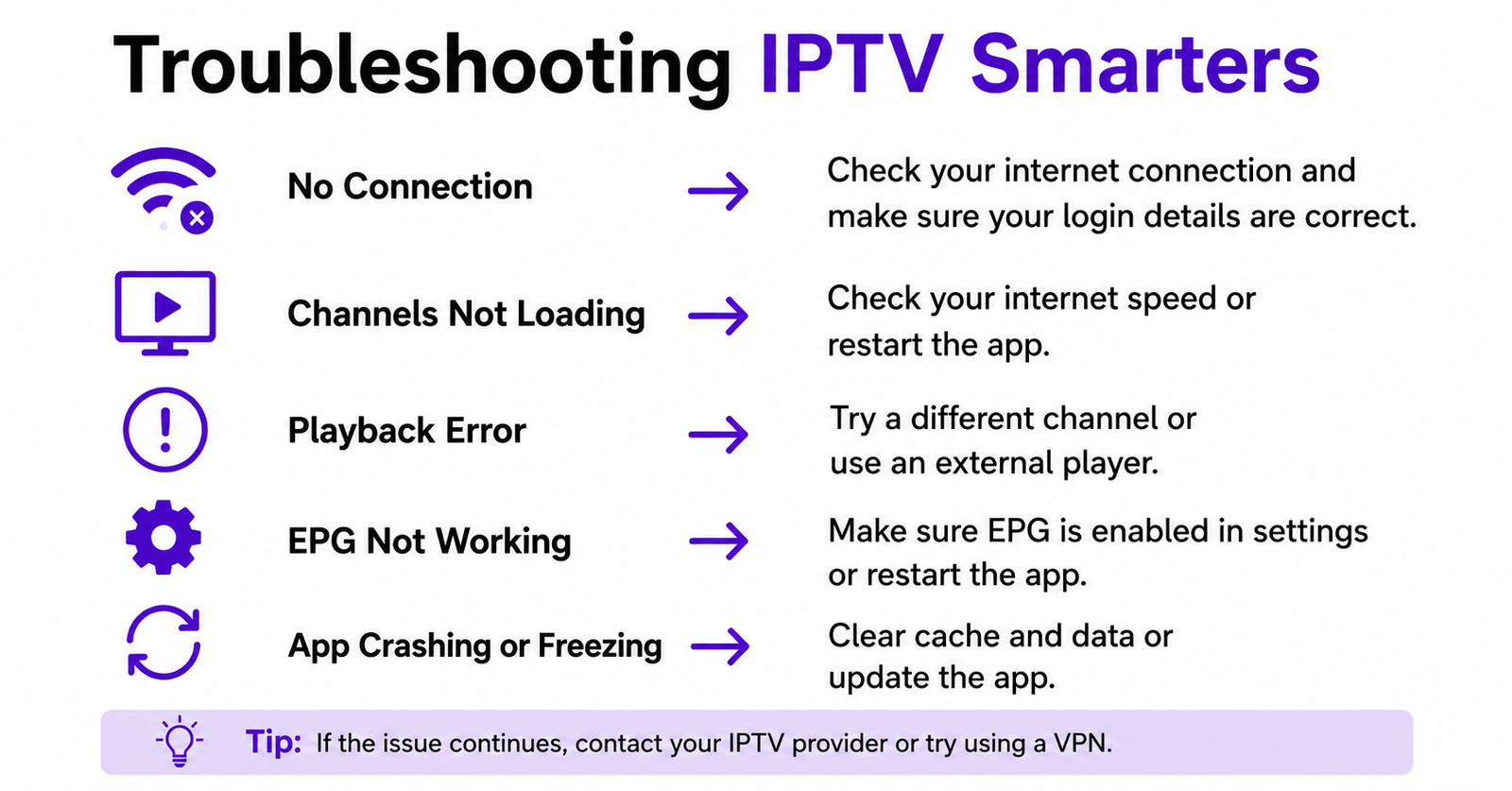
Troubleshooting IPTV Smarters is less about the app itself and more about understanding the ecosystem sitting behind it. Smarters is a front-end player. It renders what you feed it. When things go wrong, the instinct is to blame the app. But after years of managing reseller operations and fielding thousands of support tickets, the real fault almost always lives elsewhere — in the panel configuration, DNS resolution, server load, or the subscriber’s own network.
This article breaks down every common failure point in IPTV Smarters, section by section, and gives you the operator-level fixes that actually work. No recycled FAQ lists. No “reinstall the app” as the entire answer. Actual diagnosis, actual solutions.
When IPTV Smarters Won’t Log In — And It’s Not the Password
The single most common support ticket any IPTV reseller receives is a login failure. Before you reset a single credential, run through this diagnostic sequence:
- Check the portal URL format. Smarters requires the full URL with protocol and port. Missing the port number or adding a trailing slash will silently fail on most Android builds.
- Verify the subscription status in your panel. An expired or suspended line won’t return a useful error — just a blank spin.
- Test the Xtream Codes API URL directly in a browser. If the panel’s API endpoint doesn’t return a JSON response, the problem is upstream, not in Smarters.
- Confirm DNS resolution from the subscriber’s network. Some ISPs now block resolution of known IPTV-related domains at the DNS level. This won’t produce a clean error in Smarters — it’ll just look like a timeout.
Pro Tip: When troubleshooting IPTV Smarters login issues, always ask the subscriber to try logging in on mobile data first. If mobile data works but Wi-Fi doesn’t, you’ve immediately isolated the problem to their ISP or router DNS settings. This one step eliminates 40% of login tickets.
Buffering That Starts 20 Minutes Into a Stream
Instant buffering is easy to diagnose. It’s usually bandwidth or server overload. But the buffering that starts 20 minutes in — that’s the one that drives resellers insane, because subscribers assume the service is “going bad” when the root cause is something entirely different.
Delayed buffering in IPTV Smarters almost always traces back to one of three things: HLS segment delivery falling behind due to server-side latency, the device’s video decoder running hot and throttling, or the CDN edge node rotating to a congested path mid-stream.
Here’s the part no generic guide mentions. Most budget IPTV servers run without proper load balancing. When a server crosses 70% capacity, it doesn’t crash — it starts serving HLS segments slower. The stream stays alive, but the buffer drains gradually. By the 15-20 minute mark, the buffer is empty, and the viewer sees stuttering.
The fix isn’t on the Smarters side. It’s infrastructure.
| Factor | Budget Setup | Professional Setup |
|---|---|---|
| Load Balancing | None — single origin | Round-robin or geographic DNS |
| Backup Uplink | Single ISP connection | Dual uplink with failover |
| HLS Segment Cache | No CDN layer | Edge caching with 30s TTL |
| Server Capacity Alert | Manual monitoring only | Automated threshold alerts at 60% |
| Subscriber Experience | Degrades under load | Consistent even at peak |
If you’re troubleshooting IPTV Smarters buffering and your panel provider can’t tell you their server load percentage in real time, that’s your answer right there.
EPG Data Missing or Showing Wrong Channels
A blank EPG inside Smarters doesn’t mean the EPG feed is down. Nine times out of ten, it means the EPG source URL has changed, the XML file is malformed, or the channel IDs in your panel don’t match the EPG mapping.
Start here:
- Pull the EPG URL from your panel and open it in a browser. If it downloads an XML file, inspect the first 50 lines. Look for proper channel ID tags.
- Cross-check that the tvg-id values assigned to your channels in the panel match the IDs in the EPG XML. A single mismatch means that channel shows no guide data.
- Check the EPG refresh interval. Some panels default to 72-hour refresh cycles. If the source updates daily but your panel only pulls every three days, you’ll have gaps.
Pro Tip: When troubleshooting IPTV Smarters EPG issues, export your channel list and your EPG XML, then run a simple comparison. The channels where tvg-id is blank or doesn’t match an ID in the XML — those are your broken listings. Fix the mapping, force an EPG refresh, and the guide populates within minutes.
The “Stream Not Available” Error Nobody Explains Properly
This is the error that generates the most confused messages from subscribers. They see “Stream not available” and assume their subscription is cancelled. What’s actually happening is the stream URL returned by the panel is unreachable from the player.
Troubleshooting IPTV Smarters when this error appears means working backwards from the stream URL. Your panel generates a unique stream link per channel per subscriber. If that link hits a dead server, a blocked IP range, or a port that the subscriber’s ISP is filtering, Smarters has no fallback — it just shows the error.
Three diagnostic steps that actually resolve this:
- Copy the direct stream URL from your panel’s API output and test it in VLC on a desktop. If VLC plays it, the problem is device-specific or network-specific on the subscriber’s end.
- Check whether the server IP has recently changed. Some providers rotate IPs to avoid blocks, but if your panel DNS cache hasn’t updated, subscribers get pointed at a dead address.
- Ask the subscriber if they’re using a VPN. Certain VPN exit nodes are blacklisted by IPTV servers. Switching nodes or disconnecting the VPN often resolves it instantly.
DNS Poisoning and ISP-Level Blocks: The 2026 Reality
This is the section most troubleshooting guides skip entirely, because it’s uncomfortable. In 2026, ISP-level interference with IPTV traffic is more sophisticated than simple port blocking. Major ISPs now deploy DNS poisoning — redirecting known IPTV panel domains to dead endpoints — and deep packet inspection to identify and throttle HLS streams from flagged IP ranges.
When you’re troubleshooting IPTV Smarters and everything looks correct on your end — credentials valid, panel online, server healthy — but subscribers in a specific region all report failures simultaneously, you’re probably looking at a DNS-level block.
The operational response:
- Switch subscriber DNS to a privacy-respecting resolver (Cloudflare 1.1.1.1, Google 8.8.8.8, or Quad9). This bypasses ISP DNS poisoning immediately.
- Deploy DNS-over-HTTPS on the subscriber’s router if they’re technically capable, or guide them through Android’s Private DNS setting.
- Rotate your panel domain. If the domain itself is poisoned, no DNS change helps. You need a fresh domain pointing to the same panel backend.
- Consider moving your panel behind Cloudflare to mask the origin IP and benefit from domain-fronting resilience.
Pro Tip: Keep a secondary domain pre-configured and ready to activate within 30 minutes. When your primary panel domain gets flagged, your downtime is measured by how fast you can swap DNS — not how fast you can set up a new domain from scratch. Troubleshooting IPTV Smarters under ISP blocks is a race against subscriber churn.
When Smarters Crashes on Launch — Device-Level Diagnosis
App crashes before the interface loads are almost never a server problem. They’re a device problem. But your subscribers won’t see it that way. To them, “the app crashed” equals “your service is broken.”
Here’s the device-side checklist that resolves 90% of crash-on-launch cases:
- Insufficient storage. IPTV Smarters caches EPG data, channel logos, and recently played stream metadata. On devices with under 500MB free, this cache can corrupt. Clearing app data (not just cache) forces a clean state.
- Android WebView outdated. Smarters relies on the system WebView component for certain UI rendering. An outdated WebView causes silent crashes on newer Android builds. Update it through the Play Store.
- Conflicting overlay apps. Screen dimmer apps, chat bubbles, or accessibility overlays can prevent Smarters from drawing its UI. Disable them during testing.
- Sideloaded APK version mismatch. If you’re distributing a white-label or modified APK, ensure the build targets the correct Android API level. A 2024 APK targeting API 30 will increasingly crash on Android 14+ devices expecting API 33+.
Troubleshooting IPTV Smarters crashes means thinking like a device technician, not just a reseller. The fix is often one toggle away, but finding that toggle requires systematic elimination.
Managing Subscriber Expectations When You Can’t Fix It Instantly
Here’s something the technical guides never cover: the psychology of a subscriber whose stream just died during the biggest match of the week.
They don’t care about HLS latency. They don’t care about load balancing. They want it fixed now, and if you can’t fix it now, they want to know you’re competent enough to fix it soon.
Troubleshooting IPTV Smarters in a live crisis is as much communication as it is technical work. Operators who survive high-churn periods all share one habit — they communicate proactively.
- Acknowledge the issue before subscribers report it. If your monitoring shows a server spike or failed node, send a broadcast message. Subscribers tolerate downtime far better when they feel informed.
- Give a specific ETA, even if it’s rough. “We’re working on it” is the fastest way to lose trust. “Server migration in progress, estimated 45 minutes” keeps people patient.
- Follow up when it’s resolved. A quick “all streams restored, thank you for your patience” closes the loop and builds retention.
Pro Tip: Create templated responses for your five most common issues. When you’re troubleshooting IPTV Smarters under pressure, you don’t want to be drafting messages from scratch. Speed of response directly correlates with subscriber retention.
Panel Credit Management and How It Connects to Smarters Errors
This catches newer resellers off guard constantly. They’re troubleshooting IPTV Smarters errors that look like server problems but are actually panel credit problems.
When your reseller panel credits run out, new activations fail silently. Existing lines may continue working until their expiry date, but renewals won’t process. The subscriber tries to log in after their line expires, gets a login failure in Smarters, and thinks the service is down. Meanwhile, you’ve just forgotten to top up your panel balance.
Set up credit threshold alerts. Every serious panel system supports this. When your credits drop below a defined level — say, enough for 48 hours of renewals — you should receive an SMS or email notification. This isn’t optional. It’s the difference between a minor admin task and a subscriber revolt.
VPN Configuration Inside IPTV Smarters — What Actually Works
Smarters doesn’t have a built-in VPN, but many subscribers run a separate VPN app alongside it. This creates a specific set of problems that require targeted troubleshooting.
When troubleshooting IPTV Smarters over a VPN connection, check these variables:
- VPN protocol. WireGuard performs significantly better for streaming than OpenVPN. The lower overhead means less latency and fewer buffer stalls. If subscribers are on OpenVPN, switching to WireGuard-compatible providers often resolves persistent buffering.
- VPN server location. The VPN exit node should be geographically close to the IPTV server. A subscriber in London routing through a Singapore VPN node to reach a Netherlands-based IPTV server is adding 200ms+ of latency unnecessarily.
- Split tunnelling. Some VPN apps allow split tunnelling — routing only specific apps through the VPN. Running Smarters through the VPN while keeping general internet traffic direct reduces overhead and often improves stream stability.
| VPN Setup | Likely Outcome |
|---|---|
| No VPN, no ISP block | Best performance |
| WireGuard, nearby exit node | Minimal impact, good privacy |
| OpenVPN, distant exit node | Noticeable buffering increase |
| Free VPN with data caps | Frequent disconnections, throttling |
Troubleshooting IPTV Smarters on Firestick — Platform-Specific Traps
Firestick is the single most common device in IPTV households, and it has its own set of quirks that cause Smarters-specific failures.
- Background app memory pressure. Firestick aggressively kills background apps. If a subscriber switches to another app and returns to Smarters, the stream often needs to re-buffer from scratch. Advise subscribers to fully close other apps before launching Smarters.
- Automatic updates breaking sideloaded apps. Amazon pushes Fire OS updates that can revoke permissions for sideloaded apps. After an OS update, Smarters may lose storage or network permissions silently. Reinstalling restores them.
- Resolution mismatch. Some Firestick models output at 1080p but the IPTV stream is encoded at 720p. Smarters scales up, which uses decoder resources and can cause stuttering on older Firestick hardware. Setting the Firestick display to match the stream resolution reduces decoder load.
Pro Tip: When troubleshooting IPTV Smarters on Firestick, the single most effective fix is a full power cycle — not a restart from the menu, but physically unplugging the device for 30 seconds. This clears the memory cache completely. Menu restarts don’t achieve the same result on Fire OS.
Frequently Asked Questions
Can I use IPTV Smarters on multiple devices with the same login?
This depends entirely on your reseller panel settings. Most panels allow you to set a maximum connection limit per subscription — typically one or two simultaneous streams. If a subscriber tries a third device, Smarters will show a connection error without explaining why. Check your panel’s multi-connection settings before escalating.
Why does troubleshooting IPTV Smarters always seem harder on Smart TVs?
Smart TV builds of Smarters receive updates far less frequently than mobile or Firestick versions. Older TV firmware combined with an outdated Smarters APK creates compatibility gaps. The TV’s built-in DNS settings are also harder to change, making ISP-level blocks more persistent on these devices. Sideloading a newer APK version often resolves persistent issues.
What causes audio but no video in IPTV Smarters?
This is almost always a codec mismatch. The stream uses a video codec that the device’s hardware decoder doesn’t support — typically HEVC/H.265 on older hardware. Switching the channel to an H.264 stream variant in your panel, or advising the subscriber to use a device with HEVC support, resolves it immediately.
Is troubleshooting IPTV Smarters different from troubleshooting other IPTV players?
The core server-side diagnostics are identical regardless of player. Where Smarters differs is in its Xtream Codes API dependency — it relies on specific API response formats. If your panel returns non-standard API responses, Smarters will fail while other players using direct M3U might work fine. Always test with both Smarters and an M3U-based player to isolate the fault.
How do I fix the “player error” message inside IPTV Smarters?
Switch between the built-in player options. Smarters offers multiple decoder options — typically ExoPlayer and native VLC-based rendering. ExoPlayer handles adaptive bitrate better, while VLC handles a wider codec range. Testing both identifies which one works with your specific stream encoding. This resolves most generic “player error” messages.
Does clearing Smarters cache fix most problems?
Clearing cache fixes a specific subset — corrupted EPG data, stale login tokens, and broken channel logos. It does not fix server-side issues, DNS blocks, or credential problems. Think of cache clearing as step one of five, not the entire solution. If the issue persists after clearing cache and app data, the problem is upstream.
Why does IPTV Smarters work on Wi-Fi but not on mobile data?
Some mobile carriers apply aggressive traffic shaping to video streams detected via deep packet inspection. The carrier identifies the HLS stream pattern and throttles it. Using a VPN on mobile data bypasses this inspection. Also check that mobile data permissions are enabled for Smarters in your device’s app settings — Android sometimes restricts background data for sideloaded apps.
Can panel server migration cause issues in IPTV Smarters?
Absolutely. When a panel provider migrates to new servers, the DNS propagation delay means some subscribers resolve to the old IP while others reach the new one. During this window — which can last up to 48 hours — troubleshooting IPTV Smarters becomes a geography game. Subscribers whose ISP DNS caches are slow to update will experience failures while others work perfectly. Advise affected users to flush DNS or switch to a public resolver.
Reseller Success Checklist: Troubleshooting IPTV Smarters Like a Professional
- Build a diagnostic sequence, not a guessing habit. Every support ticket should follow: check credentials → test API URL → verify DNS → test on alternate network → check device. In that order. Every time.
- Maintain a secondary panel domain pre-configured and ready to deploy within 30 minutes of a DNS block.
- Set panel credit threshold alerts so you never discover you’re out of credits from a subscriber complaint.
- Keep a test device per platform — Android phone, Firestick, Smart TV. When a subscriber reports an issue, reproduce it before responding.
- Document every resolution. Build an internal knowledge base of fixes mapped to error symptoms. After six months, you’ll resolve 80% of tickets in under two minutes.
- Monitor before your subscribers notice. Use uptime monitoring on your panel URL and primary stream servers. If a server goes down at 2am, you should know before the first complaint lands.
- Standardise your VPN guidance. Create a one-page PDF with recommended VPN settings (WireGuard protocol, nearest server, split tunnelling instructions) and send it proactively to subscribers in ISP-heavy blocking regions.
- Update your Smarters APK distribution quarterly. Old builds accumulate bugs. Maintain a download page with the current recommended version for each device type.
- For deeper infrastructure strategies, panel sourcing, and scaling frameworks, explore the resources at British Seller — built by operators running the same playbook.
- Treat troubleshooting IPTV Smarters as a retention tool, not a cost centre. Every ticket resolved quickly is a renewal earned. Every ticket ignored is a subscriber gone.