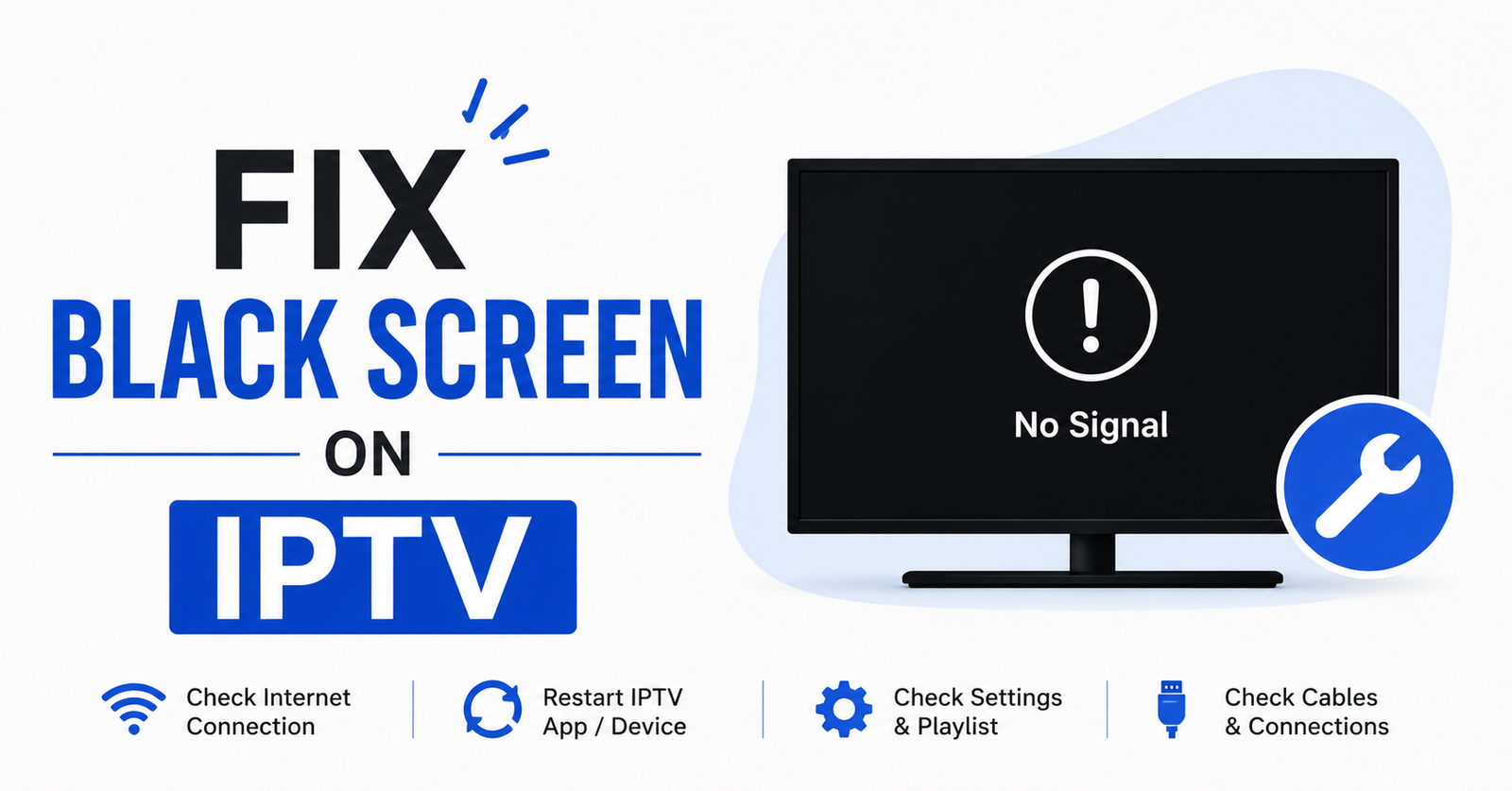

Nothing kills subscriber confidence faster than a black screen. Not buffering. Not a frozen frame. A completely black, dead-silent screen that makes your customer wonder whether they just threw money away. And if you’re a reseller, it makes you wonder whether your panel provider is about to cost you your entire client base.
The truth is, learning to fix black screen on IPTV isn’t about memorising one trick. It’s about understanding a chain of failure points — from DNS resolution all the way down to HLS stream handshake — and knowing which link just snapped. This guide doesn’t waste your time with surface-level advice. Every section targets a different failure layer, because a black screen on one device for one reason demands a completely different response than the same symptom caused by something else entirely.
Whether you’re a household subscriber staring at a dead screen after dinner, or a IPTV reseller fielding panic messages from thirty customers at once, this is the resource that walks you through it like someone who’s been on both sides of that support ticket.
The Anatomy of a Black Screen — Why It’s Never Just One Thing
A black screen is a symptom, not a diagnosis. That distinction matters. When subscribers contact you saying “it’s not working,” your job is to reverse-engineer the failure chain before touching a single setting.
Here’s what’s actually happening behind that blank display. The IPTV app sends a stream request to the server. The server responds with a playlist URL. The player parses that playlist URL and begins pulling video segments. If any step in that sequence fails silently — no error code, no timeout message — the result is a black screen.
To fix black screen on IPTV effectively, you need to isolate where the chain breaks:
- DNS resolution failure — the app can’t find the server at all
- Playlist retrieval timeout — the server responds too slowly or drops the connection
- Codec mismatch — the stream format doesn’t match what the player can decode
- Token or authentication expiry — the M3U line is valid but the session token has lapsed
- ISP-level packet inspection — the stream request gets flagged and silently dropped
Pro Tip: Before troubleshooting anything technical, always check the simplest cause first. Ask the subscriber whether the screen goes black on every channel or just one category. If it’s category-specific, the issue is almost certainly server-side — one cluster is down while others are fine.
DNS Failures: The Silent Killer Behind Most Black Screens
If you’re trying to fix black screen on IPTV and you haven’t changed your DNS settings, start here. Default ISP DNS servers are increasingly unreliable for IPTV traffic. Many major ISPs now use DNS poisoning to redirect or block known streaming domains. Your app tries to resolve the server address, gets a poisoned response, and the connection dies before it starts.
The result? A perfectly functional app showing absolutely nothing.
Switch your DNS to a provider that doesn’t engage in domain filtering. Configure it at the router level so every device on the network benefits. If you’re a reseller, include DNS configuration in your setup guide — it prevents a massive percentage of first-day support tickets.
| DNS Approach | Reliability for IPTV | ISP Blocking Risk | Speed |
|---|---|---|---|
| Default ISP DNS | Low | High | Variable |
| Public DNS (e.g. Cloudflare, Google) | Medium-High | Low | Fast |
| Custom/Private DNS | High | Very Low | Depends on server |
| DNS-over-HTTPS (DoH) | High | Very Low | Slightly slower |
For Android-based devices and Firestick, DNS-over-HTTPS can be configured through private DNS settings or third-party apps. For MAG boxes and STBs, you’ll need to set DNS at the router level since most firmware doesn’t support DoH natively.
App Cache and Data Corruption — When the Player Itself Is the Problem
Here’s a scenario resellers see constantly: a subscriber’s IPTV worked perfectly yesterday, and today every channel shows a black screen. Nothing changed on the server side. No outage. No DNS issue. The app simply corrupted its own cache overnight.
To fix black screen on IPTV caused by app-level corruption, you need to clear the app cache and data. On Firestick, navigate to Settings, then Applications, then Manage Installed Applications, find your IPTV player, and clear both cache and data. On Android boxes, the path is similar through Settings and Apps.
But here’s what most guides won’t tell you — clearing data wipes your M3U login credentials and EPG sources. Subscribers who don’t have their portal URL or login details saved somewhere will be locked out and immediately blame you.
Pro Tip: Every time you onboard a subscriber, send them a welcome message containing their portal URL, username, and password. Tell them to screenshot it. This single step cuts your “I cleared cache and now nothing works” tickets by half.
After clearing cache, restart the app and re-enter the login credentials. If the black screen persists after this step, the issue isn’t local — move up the chain to server and network diagnostics.
VPN Conflicts and Encryption Overhead — A Growing Cause in 2026
A pattern that’s become significantly more common through 2025 and into 2026: subscribers using VPNs experience black screens that non-VPN users on the same server don’t encounter. This happens because many VPN protocols add encryption overhead that interferes with real-time HLS segment delivery.
When you try to fix black screen on IPTV for a subscriber running a VPN, the first step is to test without the VPN active. If the stream loads immediately, the VPN is the bottleneck. But telling a subscriber to stop using their VPN isn’t always practical — some need it to bypass ISP blocking in the first place.
The solution involves protocol selection. WireGuard handles IPTV traffic far better than OpenVPN because its encryption overhead is lower and its handshake is faster. If the subscriber’s VPN provider supports WireGuard, switching protocols often resolves the black screen entirely without sacrificing the privacy benefit.
For resellers managing multiple subscribers behind VPNs, here’s the real operational insight: maintain a list of VPN providers and protocols that your panel’s streams are tested against. When a subscriber reports a black screen and mentions a VPN, you can immediately narrow the diagnosis instead of running through every troubleshooting step from scratch.
- Test stream without VPN — if it works, VPN is the issue
- Switch VPN protocol to WireGuard
- Change VPN server location to one closer to the IPTV server
- Disable VPN kill switch temporarily during testing
- Check if split tunnelling can exclude the IPTV app from VPN routing
Server-Side Failures That Resellers Can Actually Diagnose
Not every black screen is the subscriber’s fault. Sometimes the panel itself is the problem, and the faster you identify server-side failures, the less churn you eat.
To fix black screen on IPTV when the root cause is upstream, you need visibility into your panel’s health. Most Xtream Codes-based panels and derivatives offer a connection monitoring page. If you see active connections dropping simultaneously across multiple subscribers, the issue is server load, uplink failure, or a stream source going offline.
What Experienced Operators Check First on the Panel Side
The stream source status. Every channel on your panel pulls from an upstream source. If that source drops, every subscriber on that channel sees a black screen. Check your panel’s stream source monitoring page and look for sources marked offline or with high error rates.
The server load. An overloaded server won’t crash visibly — it just starts dropping stream requests silently. Subscribers get a black screen while your panel dashboard might still show “online.” Monitor CPU and RAM usage on your server. If either consistently exceeds 80%, you’re overloaded.
Pro Tip: Set up automated alerts for server load thresholds. If CPU hits 75%, you should already be considering load balancing or migrating some connections to a backup uplink server. By the time subscribers start reporting black screens, you’ve already lost their trust.
EPG and Playlist Parsing Errors — The Overlooked Trigger
Electronic Programme Guide errors are rarely discussed in black screen troubleshooting guides, but they cause more issues than most operators realise. When an EPG source serves malformed XML data, some IPTV players crash during the parsing process. The player doesn’t display an error message. It simply shows a black screen.
To fix black screen on IPTV caused by EPG corruption, disable the EPG source in your app settings and reload the channel list. If streams start working immediately, your EPG source is the culprit. Either switch to a different EPG provider or contact your panel provider to report the malformed feed.
For resellers, EPG issues are particularly dangerous because they affect all subscribers simultaneously but don’t trigger any server-side alert. Your panel shows everything operational while every subscriber stares at a black screen. The disconnect between panel health indicators and actual subscriber experience is one of the most frustrating aspects of IPTV operations.
Playlist Size and Parsing Timeouts
A secondary issue related to playlist parsing: some players can’t handle large M3U playlists efficiently. If your panel serves a playlist with 15,000+ channels, older devices may time out during parsing and default to a black screen. The fix is to use category-based loading or Xtream Codes API login instead of a full M3U URL — the API serves channels on demand rather than forcing the device to swallow the entire catalogue at once.
ISP-Level Blocking: When Your Internet Provider Is the Actual Problem
This is the scenario that drives both subscribers and resellers to the edge. Everything is configured correctly. The server is healthy. DNS is properly set. The app is freshly installed. And yet — black screen. Nothing plays.
In 2026, ISP-level deep packet inspection has become increasingly sophisticated. Major broadband providers don’t just block known IPTV domains anymore. They inspect traffic patterns and throttle or drop connections that match streaming signatures. You won’t get an error message. You won’t get a timeout notification. You’ll get a black screen.
How to Fix Black Screen on IPTV Caused by ISP Blocking
To fix black screen on IPTV caused by ISP blocking, the approach depends on the method they’re using:
- Domain-level blocking — resolved by changing DNS (covered earlier)
- IP-level blocking — requires VPN or proxy to mask the destination server
- Deep packet inspection — requires encrypted tunnelling (VPN with WireGuard or similar)
- SNI filtering — requires encrypted SNI or ECH support
For resellers, ISP blocking is an operational reality you need to build into your support workflow. Maintain a running list of which ISPs in your target market are actively blocking and what methods they use. When a subscriber contacts you, ask which ISP they’re on before anything else. If they’re on a known blocking ISP, you skip straight to the VPN recommendation instead of wasting both your time on cache clears and app reinstalls.
Pro Tip: Some panel providers offer backup uplink servers specifically designed for blocked regions. If your primary server IP is blocked by a major ISP, switching the subscriber to a backup uplink often restores the stream immediately. Ask your provider whether they offer regional failover — it’s a feature that separates premium infrastructure from budget operations.
Device-Specific Black Screen Causes That Nobody Talks About
Every device handles IPTV streams slightly differently, and some black screen causes are unique to specific hardware. Generic troubleshooting guides treat every device the same, which is why they fail so often.
Amazon Firestick
On Amazon Firestick, a common cause of black screens is the device entering a low-power state that kills background processes. The IPTV app technically remains open, but its network connection gets terminated by the OS. Disabling power-saving mode and keeping the Firestick connected to a stable power source (not the TV’s USB port — use a wall adapter) prevents this.
MAG Boxes
On MAG boxes, black screens frequently result from portal URL misconfiguration. MAG devices use a portal-based authentication system, and even a single character error in the portal URL produces a black screen rather than an error message. Always double-check the portal URL character by character when onboarding a MAG subscriber.
Smart TVs
On Smart TVs running built-in IPTV apps, the most common black screen trigger is an outdated player that lacks support for newer codec profiles. Smart TV apps are notoriously slow to update, and if your panel switches to a different encoding format, older Smart TV players simply can’t decode it.
To fix black screen on IPTV on Smart TVs, the best approach is often to abandon the built-in player entirely. Connect a Firestick or Android box to the TV and run a dedicated IPTV player like TiviMate or IPTV Smarters. The external device offers better codec support, more frequent updates, and easier troubleshooting when issues arise.
How Load Balancing Prevents Black Screens Before They Happen
Reactive troubleshooting is essential, but prevention is what separates struggling resellers from operators who scale. Load balancing across multiple servers ensures that no single server bears enough traffic to start dropping connections.
When you fix black screen on IPTV after the fact, you’re already dealing with an angry subscriber. When you prevent it through infrastructure, that subscriber never notices anything was at risk.
Effective load balancing for IPTV resellers doesn’t require enterprise-level networking knowledge. At a minimum, it means having two uplink servers in different data centres and configuring your panel to distribute connections between them. If one server goes down or gets overloaded, the other absorbs the traffic automatically.
| Infrastructure Tier | Server Setup | Black Screen Risk | Monthly Cost Range |
|---|---|---|---|
| Budget | Single shared server | Very High | Low |
| Mid-Range | Dedicated server, no failover | Medium | Moderate |
| Professional | Two servers, basic load balancing | Low | Higher |
| Enterprise | Multi-region, auto-failover, CDN | Very Low | Premium |
The cost difference between budget and professional infrastructure is significant, but so is the subscriber retention difference. A reseller running budget infrastructure loses subscribers every time there’s a black screen outage. A reseller running professional infrastructure keeps those subscribers for months — and the lifetime value more than covers the higher server cost.
- Distribute connections across a minimum of two servers
- Place backup uplink servers in different geographical regions
- Monitor server load in real-time with automated threshold alerts
- Test failover manually at least once per month
- Keep your panel provider informed about peak usage patterns so they can pre-allocate capacity
When the Black Screen Is Actually a Payment or Authentication Issue
Sometimes the most technical-looking problem has the simplest cause. A subscriber whose line has expired or whose panel credits have run out will see a black screen indistinguishable from a server failure. No error message. No “subscription expired” notification. Just black.
To fix black screen on IPTV in these cases, the first check should always be the subscriber’s line status in your panel. Open the user’s profile, verify the expiry date, and confirm that the line is active. If it expired even one minute ago, the stream will drop to a black screen immediately.
For resellers managing hundreds of subscribers, expired lines are a constant source of support tickets. The subscriber doesn’t realise their subscription lapsed, contacts you in a panic, and you spend fifteen minutes troubleshooting a technical issue that’s actually a billing issue.
Pro Tip: Set up automated renewal reminders — send subscribers a message three days and one day before their line expires. This single automation eliminates a huge volume of “black screen” support tickets that are actually just expired subscriptions. Your panel provider may offer built-in notification features, or you can use external tools integrated via API.
Codec and Format Mismatches — The Technical Layer Most Users Miss
Behind every IPTV stream is a specific codec and container format. When the player on a subscriber’s device doesn’t support the codec the server is pushing, the audio might play while the video shows nothing — or the entire output goes black.
The most common mismatch in 2026 involves HEVC (H.265) streams being sent to devices or players that only support H.264. HEVC offers better compression and lower bandwidth requirements, which makes it attractive for panel operators. But older devices, budget Android boxes, and certain Smart TV players can’t decode HEVC natively.
To fix black screen on IPTV caused by codec incompatibility, switch the stream output format in the subscriber’s player settings from “auto” to “H.264” or “MPEG-TS.” Most IPTV players, including TiviMate and Smarters, allow manual codec selection. If the panel supports both H.264 and HEVC outputs per channel, you can also adjust this at the panel level for specific subscriber lines.
For resellers, this creates an operational decision: do you serve HEVC to all subscribers (better quality, lower bandwidth) and accept that some will hit black screen issues, or do you default to H.264 (universal compatibility) and sacrifice compression efficiency? The smart approach is to segment. Offer HEVC to subscribers on capable devices and default to H.264 for everyone else. Document each subscriber’s device type in your records so you can adjust output format proactively.
The Psychology of Black Screen Complaints — What Resellers Get Wrong
A technical fix solves the immediate problem. But the way you handle the complaint determines whether the subscriber renews. Most resellers focus entirely on the technical side and ignore the human side, which is why their churn rates stay high even after they’ve improved their infrastructure.
When a subscriber messages you about a black screen, they’re not thinking about DNS or codecs. They’re thinking: “I paid for this and it doesn’t work.” The emotional weight of that thought increases with every minute the screen stays black.
The Right Response Workflow to Fix Black Screen on IPTV and Retain the Subscriber
Acknowledge the issue immediately — even if you don’t have a solution yet, confirm you’re investigating. Silence from a reseller during an outage is more damaging than the outage itself.
Provide a realistic time estimate. Don’t say “it’ll be fixed soon” because “soon” means something different to everyone. Say “I’m investigating and will update you within 30 minutes.” Then actually update them within 30 minutes, even if you haven’t fixed it yet.
After resolution, follow up proactively. A message saying “I’ve identified and resolved the issue — your streams should be working now, let me know if anything’s still off” demonstrates professionalism that budget resellers never match.
- Respond to every black screen report within 15 minutes
- Never blame the subscriber’s device or internet until you’ve ruled out server-side causes
- Offer credit or an extension if the outage lasted more than an hour
- Document each incident so you can identify patterns across your subscriber base
Frequently Asked Questions
How Do I Fix Black Screen on IPTV if Only One Channel Is Affected?
When a single channel displays a black screen while others work fine, the issue is almost always source-side. That specific channel’s upstream feed has dropped or its stream URL has changed. Check your panel’s source monitoring dashboard for that channel’s status. If it shows offline or high error rates, report it to your panel provider. There’s nothing to configure on the subscriber’s end — this requires a server-side source replacement.
Why Does My IPTV Show a Black Screen After a Few Minutes of Working?
This pattern typically indicates token expiry or session timeout issues. The initial stream loads successfully, but the authentication token expires mid-session and the server terminates the connection silently. Restarting the app generates a fresh token and temporarily resolves it. If this recurs frequently, your panel provider may need to extend the token validity window on their server configuration.
Can a Slow Internet Connection Cause a Black Screen on IPTV?
Yes, but it manifests differently than most people assume. A slow connection usually causes buffering, not a black screen. However, if the connection is so slow that the initial playlist handshake times out entirely, the player never receives stream data and defaults to a black screen. A stable connection of at least 25 Mbps is recommended for HD IPTV streams, and 50 Mbps or higher for households running multiple simultaneous streams.
Is There a Way to Fix Black Screen on IPTV Permanently?
No single fix is permanent because black screens have multiple possible causes. However, you can drastically reduce their frequency by configuring reliable DNS at the router level, using a modern IPTV player with broad codec support, keeping apps updated, and choosing a panel provider with redundant infrastructure and backup uplink servers. Resellers who invest in professional-grade infrastructure see significantly fewer subscriber complaints.
Does Clearing Cache Always Fix Black Screen on IPTV?
Clearing cache resolves black screens caused by corrupted app data, but it does nothing for DNS failures, ISP blocking, server outages, or expired subscriptions. It’s a valid first troubleshooting step because it’s quick and non-destructive, but treating it as the only fix is a mistake. If clearing cache doesn’t resolve the issue, escalate to DNS checks, VPN testing, and server-side diagnosis rather than repeating the same step.
Why Do Some Devices Get Black Screens While Others on the Same Network Work Fine?
This almost always points to a codec mismatch or device-specific player limitation. Different devices support different video encoding formats. If the server pushes HEVC streams and one device only supports H.264, that device shows a black screen while HEVC-capable devices play normally. Switching the affected device’s player settings to force H.264 decoding, or using a more capable IPTV app, usually resolves the discrepancy.
How Can Resellers Reduce Black Screen Complaints From Subscribers?
Proactive infrastructure management is the biggest lever. Use load-balanced servers with automatic failover, monitor stream sources continuously, send subscription renewal reminders before lines expire, and provide subscribers with a setup guide covering DNS configuration and recommended player settings at onboarding. Resellers who do these four things consistently report dramatically fewer black screen support tickets.
Should I Use a VPN to Fix Black Screen on IPTV?
A VPN helps specifically when your ISP is blocking IPTV traffic through DNS poisoning, IP blocking, or deep packet inspection. If the black screen is caused by ISP interference, connecting through a VPN with WireGuard protocol typically restores the stream. However, if the cause is server-side, app corruption, or codec-related, a VPN won’t make any difference and might actually worsen performance due to encryption overhead.
Success Checklist for Resellers Dealing With Black Screen Issues
- Configure reliable DNS at the router level for every subscriber during onboarding — don’t leave this to chance.
- Maintain a device compatibility document listing supported codecs and recommended player settings for Firestick, MAG, Android box, and Smart TV.
- Build an automated subscription renewal reminder system — three-day and one-day warnings before expiry.
- Set up server load monitoring with threshold alerts at 75% CPU and RAM utilisation.
- Test your failover and backup uplink servers monthly — don’t assume they work until you’ve proved it under load.
- Create a standardised troubleshooting flowchart for your support team: check line status first, then DNS, then app cache, then VPN, then escalate to server-side.
- Document every black screen incident with cause and resolution — patterns in this log reveal infrastructure weaknesses before they become mass outages.
- Stock your subscriber welcome pack with portal credentials, DNS setup instructions, and recommended app settings so they can self-resolve basic issues.
- Evaluate your panel provider’s infrastructure tier annually — if you’ve outgrown budget servers, the cost of upgrading is always less than the cost of churn.
- Stay current with IPTV reseller panel solutions at BritishReseller to benchmark your operation against professional-grade infrastructure standards.