
The Subscriber Complaint That Tanks More Reseller Businesses Than Bans Ever Will
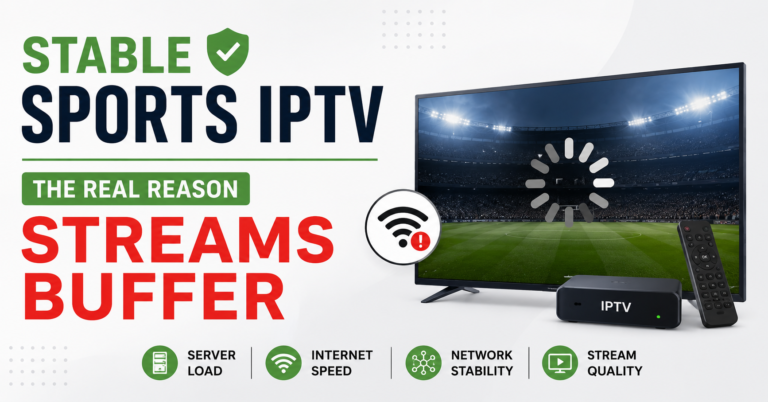
Nobody quits an IPTV service because the channel list is ugly. They quit because their screen froze during a penalty shootout.
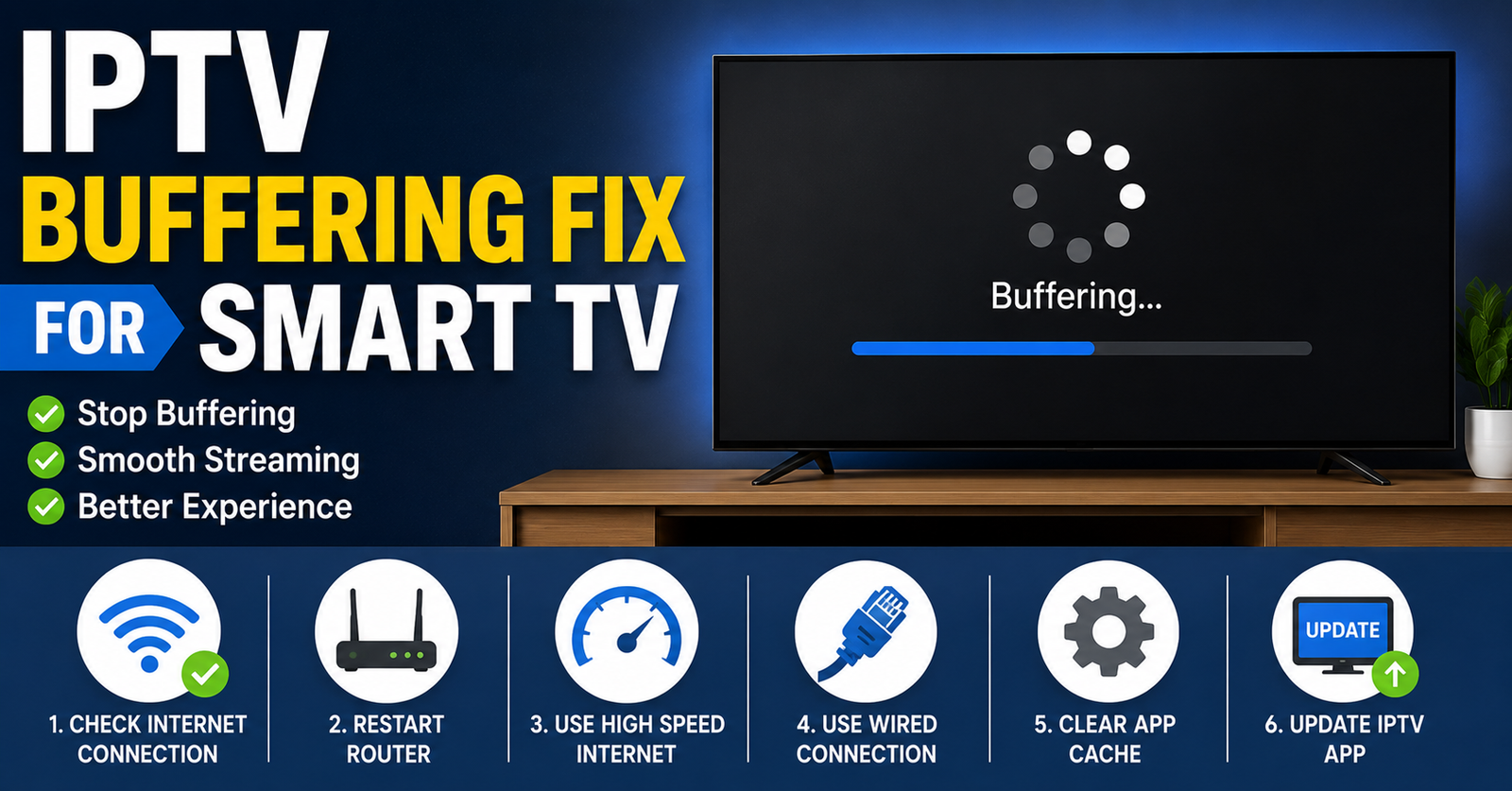
If you’ve been in the reseller game longer than a month, you already know this. Buffering is the silent churn machine. And the worst part? Most of the time, the problem isn’t even on your end — but the subscriber still blames you. That’s why having a reliable IPTV buffering fix for Smart TV users in your back pocket isn’t optional. It’s the difference between a business that retains and one that bleeds.
This isn’t another recycled “clear your cache” article. This is the field manual — written from the perspective of someone who’s spent years troubleshooting streams at 2 AM, diagnosing packet loss across three continents, and explaining to panicking resellers why their subscribers are suddenly all complaining at once on a Saturday night.
We’re going deep into every layer of the stack: the subscriber’s living room, their ISP’s backbone, and your server infrastructure. By the end, you’ll know exactly which IPTV buffering fix for Smart TV actually resolves the root cause — and which ones are just placebos.
Smart TV Hardware Bottlenecks Nobody Talks About
Here’s a dirty truth the manufacturer forums won’t tell you. Most Smart TVs — especially budget models from 2021 and earlier — ship with severely underpowered chipsets and limited RAM. They weren’t designed to handle persistent HLS streams at high bitrate. They were designed to run Netflix’s heavily optimised proprietary app.
When a subscriber loads an IPTV player on a Smart TV with 1 GB of RAM and a quad-core processor from 2019, they’re asking that hardware to decode, buffer, and render a live stream that’s nowhere near as optimised as a major platform’s CDN-delivered content.
The first IPTV buffering fix for Smart TV at this level is brutally simple: reduce the stream output quality from the panel. Drop from 1080p to 720p for subscribers on older hardware and watch the complaints vanish overnight.
Pro Tip: Ask your subscribers what model Smart TV they’re using before troubleshooting anything else. If it’s a budget brand with less than 1.5 GB RAM, the fix is output resolution — not server changes. You’ll save yourself hours.
DNS Configuration: The 90-Second Fix Most Subscribers Skip
DNS resolution speed affects buffering more than most people realize. When a Smart TV uses the ISP’s default DNS, every stream request passes through servers that may be throttled, overloaded, or — increasingly in 2026 — subject to DNS poisoning tactics designed to disrupt unauthorized streams.
Switching DNS to a faster, more neutral provider is often the single most effective IPTV buffering fix for Smart TV users can perform themselves. And it takes less than two minutes.
Recommended DNS configurations for Smart TV:
- Google DNS: 8.8.8.8 / 8.8.4.4
- Cloudflare: 1.1.1.1 / 1.0.0.1
- Quad9: 9.9.9.9 / 149.112.112.112
Walk your subscribers through the network settings on their TV. Most Samsung, LG, and Sony models bury DNS settings under Network → Advanced → Manual IP Configuration. It’s not intuitive, which is why most subscribers never change it.
Pro Tip: Create a simple one-page PDF with screenshots showing DNS change steps for the top three Smart TV brands. Send it automatically to every new subscriber. This single document will reduce your support tickets by at least 30%.
ISP Throttling Detection and the VPN Question
Let’s talk about the elephant in the room. ISP-level throttling is no longer a conspiracy theory — it’s standard practice in 2026. Major broadband providers use deep packet inspection to identify and deprioritise streaming traffic that doesn’t originate from licensed platforms. This makes ISP throttling one of the most common reasons subscribers need an IPTV buffering fix for Smart TV.
The telltale sign? Buffering that only happens during peak hours (7 PM–11 PM) and never during the day. If your subscriber reports that pattern, it’s almost certainly throttling.
The standard advice is “use a VPN.” But here’s the problem with that on Smart TVs: most Smart TV platforms don’t support native VPN apps. The workaround is configuring a VPN at the router level, which most household subscribers find intimidating.
A better approach for resellers:
- Offer server connections on non-standard ports (avoid 80 and 443)
- Use HTTPS-wrapped streams where your panel supports it
- Recommend subscribers request a static IP from their ISP — throttling algorithms often target dynamic IP pools more aggressively
| Throttling Indicator | Likely Cause | Recommended IPTV Buffering Fix for Smart TV |
|---|---|---|
| Buffering only at peak hours | ISP deprioritisation | Non-standard port or router-level VPN |
| Buffering on all devices simultaneously | Bandwidth cap reached | Reduce concurrent streams or upgrade plan |
| Buffering only on Smart TV, not phone | TV hardware or app limitation | Switch player app or lower resolution |
| Intermittent freezing with pixelation | Packet loss on route | Change DNS, try backup server URL |
Player App Selection Is Half the Battle
Not all IPTV player apps handle buffering the same way. On Smart TVs specifically, the app’s buffer management algorithm determines whether a momentary network hiccup causes a visible freeze or gets absorbed invisibly.
Here’s what most resellers don’t tell their subscribers: the default player app they recommend is usually whichever one was easiest to set up — not whichever one handles buffering best. That’s a mistake. Choosing the right player is a legitimate IPTV buffering fix for Smart TV that requires zero server-side changes.
For Samsung Tizen and LG webOS platforms, apps that allow manual buffer size adjustment give subscribers real control. Look for players that let users set buffer duration to at least 5–10 seconds. A longer buffer means the player pre-loads more content before playback starts, absorbing short network dips without interruption.
For Android TV-based Smart TVs, options are broader. TiviMate and OTT Navigator both offer granular buffer configuration. IPTV Smarters Pro is popular but has historically weaker buffer handling under network stress.
Pro Tip: If you’re building a reseller brand, test every major player app on the Smart TV platforms your subscribers actually use — not just the one you personally prefer. The “best” app changes depending on the TV’s operating system, chipset, and available RAM.
Server-Side Causes Your Subscribers Will Never See
Now we cross the line from subscriber-side troubleshooting into reseller territory. Because sometimes — and you need to be honest with yourself about this — the buffering is your fault. Or more accurately, it’s your provider’s fault, and it rolls downhill to you.
When multiple subscribers report buffering simultaneously, the problem lives upstream. Common server-side causes include overloaded origin servers, insufficient uplink bandwidth, or poor load balancing across server clusters. No amount of DNS changes or player app tweaking on the subscriber’s end will fix this. The only real IPTV buffering fix for Smart TV in this scenario is infrastructure.
What to demand from your panel provider:
- Transparency on server load percentages during peak hours
- Access to at least two backup server URLs per subscription
- Confirmation that they use geographic load balancing — not single-point origin
- Evidence of redundant uplink providers (not just one data centre on one transit provider)
If your provider can’t answer these questions, you don’t have a provider. You have a liability.
Wi-Fi vs Ethernet: The Argument That Settles Itself
Wireless connections introduce latency, packet loss, and bandwidth inconsistency that wired connections simply don’t. Yet the vast majority of Smart TVs are connected over Wi-Fi because they’re mounted on walls or placed on entertainment units far from the router.
For a subscriber experiencing persistent buffering, switching to Ethernet is often the most straightforward IPTV buffering fix for Smart TV. A 10-metre Cat6 cable costs less than a single month’s subscription. Powerline adapters work as a middle-ground solution for homes where running cable isn’t practical.
Here’s the data point that matters: Wi-Fi 5 (802.11ac) on a Smart TV in a typical home environment — with walls, other devices competing for bandwidth, and microwave interference — delivers roughly 40–60% of its theoretical throughput. That means a 100 Mbps connection might only deliver 40–60 Mbps to the TV. That’s sufficient for a single 1080p stream in theory, but once you add a second device streaming or a large download happening in the background, congestion hits fast.
- Ethernet delivers consistent, full-speed bandwidth
- No interference from neighbouring Wi-Fi networks
- No signal degradation through walls or floors
- Lower latency for live streams where real-time delivery matters
Pro Tip: If a subscriber refuses to use Ethernet, recommend they place the router in the same room as the TV and connect on the 5 GHz band specifically — not 2.4 GHz. The 5 GHz band has more available channels and less neighbourhood interference, though shorter range.
Buffer Size Settings: The Manual Override Most Users Miss
Every competent IPTV player app has a buffer setting buried somewhere in its configuration menu. This setting controls how many seconds of content the player downloads ahead of the current playback position. The default is usually 2–3 seconds, which is fine on a perfect connection and catastrophic on anything less.
Manually increasing the buffer size is a powerful IPTV buffering fix for Smart TV that takes thirty seconds and costs nothing. Set it to 8–10 seconds for a solid balance between stream stability and initial load time.
There’s a trade-off, though. A larger buffer means a longer wait when you first hit play or change channels. Subscribers who channel-surf aggressively will find a 10-second buffer annoying. For those users, 5 seconds is the sweet spot — long enough to absorb micro-interruptions, short enough to keep zapping speed tolerable.
Buffer size recommendations by use case:
- Sports viewers (rarely change channel): 8–12 seconds
- General entertainment (moderate channel switching): 5–8 seconds
- Channel surfers (constant switching): 3–5 seconds
The 2026 ISP Blocking Landscape and What It Means for Buffering
ISP blocking tactics have evolved dramatically. In 2026, AI-driven traffic analysis allows broadband providers to identify and disrupt IPTV streams with far greater precision than the crude domain-blocking methods of previous years. This creates a new category of buffering — one caused not by bandwidth or hardware limitations, but by active interference.
Recognising interference-caused buffering is critical for applying the correct IPTV buffering fix for Smart TV. The signature is distinctive: streams load initially, play for 30–90 seconds, then freeze completely. This pattern differs from bandwidth-related buffering, which typically causes intermittent micro-freezes throughout playback.
What resellers should prepare for:
- Rotate server domains regularly — stale domains get flagged faster
- Use encrypted stream delivery (HTTPS) wherever supported
- Maintain at least two backup uplink servers on different hosting providers
- Monitor community forums for ISP-specific blocking reports in your subscriber regions
The days of setting up a panel and forgetting about infrastructure are finished. The IPTV buffering fix for Smart TV in 2026 increasingly requires reseller-level awareness of the blocking landscape, not just subscriber-level tweaks.
HLS Latency and Why Stream Protocol Matters
Most IPTV services deliver content via HLS (HTTP Live Streaming), which breaks video into small segments — typically 2–6 seconds each. The player downloads these segments sequentially and plays them back. When a segment fails to download before the previous one finishes playing, you get a buffer.
HLS latency — the delay between the live event and what appears on screen — directly correlates with buffering resilience. A stream with higher latency (15–30 seconds behind live) has more room to absorb download hiccups. A low-latency stream (3–5 seconds behind live) has almost no margin for error.
For most household subscribers, a 15–20 second delay behind true live is perfectly acceptable. They’ll never notice unless they’re watching alongside someone on satellite or terrestrial. As a reseller, if your panel allows stream latency configuration, nudging it upward is a legitimate IPTV buffering fix for Smart TV that costs you nothing and dramatically improves stream stability.
Pro Tip: During major sporting events, temporarily increase stream latency on your panel by 5–10 seconds. Server load spikes during big matches, and that extra latency buffer absorbs the congestion without visible impact on the subscriber’s experience.
When the Problem Is the Subscriber’s Broadband, Not Your Service
Sometimes you’ve checked everything. The server is fine. The DNS is fast. The player is configured correctly. And the subscriber is still buffering.
At that point, the problem is usually their broadband connection — and they don’t want to hear it. But you need to say it anyway, diplomatically.
The minimum viable broadband speed for a stable IPTV stream at 1080p is roughly 15–20 Mbps of sustained, real-world throughput (not the “up to” speed their ISP advertises). For 4K content, double that.
Ask the subscriber to run a speed test — not from their phone on Wi-Fi, but from a device connected via Ethernet to their router. The result from the phone is meaningless for diagnosing Smart TV buffering. A proper speed test as part of any IPTV buffering fix for Smart TV process should measure download speed, upload speed, jitter, and packet loss.
- Download speed below 15 Mbps: likely cause of buffering at 1080p
- Jitter above 30 ms: will cause intermittent freezing regardless of speed
- Packet loss above 1%: will cause visible artefacts and stream drops
If the numbers confirm a weak connection, the fix is on their ISP’s side. Offer to lower their stream quality in the meantime — a 720p stream runs comfortably on 8–10 Mbps and still looks sharp on a 43-inch screen.
Panel Credit Management and the Buffering-Churn Connection
This section is for resellers, not subscribers. And it’s about the business reality that sits behind every buffering complaint.
Every subscriber who churns because of buffering represents lost panel credits. Those credits don’t regenerate. If you purchased 100 credits and 15 subscribers leave within their first month due to buffering issues you could have prevented, you’ve burned 15% of your investment on avoidable support failures.
The smartest resellers treat IPTV buffering fix for Smart TV knowledge as a revenue protection tool. They build troubleshooting into their onboarding flow. They send DNS configuration guides before the first complaint arrives. They test their panel’s streams on the actual Smart TV models their subscriber base uses — not on a high-spec Android box in their own home.
Pro Tip: Track which Smart TV models generate the most buffering complaints. After a few months, you’ll have a clear picture of which hardware struggles with your panel’s streams. Use that data to proactively reach out to new subscribers on those models with pre-configured settings before they ever experience a problem.
Frequently Asked Questions
Does clearing the cache on my Smart TV actually fix IPTV buffering?
Clearing the cache helps if the IPTV app has accumulated corrupted temporary data, but it’s rarely a permanent IPTV buffering fix for Smart TV. It’s worth trying as a first step — especially if the app hasn’t been restarted in weeks — but persistent buffering points to DNS, bandwidth, or server-side issues that cache clearing won’t touch. Think of it as rebooting your phone when it’s slow: sometimes it works, usually it’s masking something deeper.
Can a Smart TV’s operating system update cause new buffering problems?
Absolutely. Firmware updates on Samsung Tizen and LG webOS platforms occasionally change how the TV allocates memory to third-party apps, which can reduce the resources available to your IPTV player. If buffering started immediately after an update, check whether your player app also needs updating. An IPTV buffering fix for Smart TV after a firmware change often involves reinstalling the player app fresh rather than just updating it.
How do I know if my IPTV provider’s server is causing the buffering, not my connection?
Test from multiple devices on the same network. If your phone, tablet, and laptop all buffer simultaneously on the same IPTV service, the problem is upstream — either your provider’s server or your broadband. If only the Smart TV buffers while other devices stream fine, it’s a local issue. This simple cross-device test is the fastest way to isolate the cause before attempting any IPTV buffering fix for Smart TV.
Is 5 GHz Wi-Fi always better than 2.4 GHz for IPTV on Smart TV?
In most home environments, yes — 5 GHz offers more bandwidth and less interference from neighbouring networks. However, if your Smart TV is two or three rooms away from the router, 2.4 GHz may actually deliver more stable throughput because it penetrates walls better. The ideal IPTV buffering fix for Smart TV involving Wi-Fi is testing both bands and sticking with whichever one shows lower jitter, not just higher speed.
Why does IPTV buffer on my Smart TV during live sports but not movies?
Live sports streams demand more bandwidth because of the high motion content — fast camera pans, rapid scene changes — which increases bitrate significantly compared to a relatively static movie scene. Additionally, server load spikes during major events as thousands of subscribers watch simultaneously. An effective IPTV buffering fix for Smart TV for sports viewing specifically is increasing your player’s buffer size to 10–12 seconds and switching to Ethernet before the match starts.
Can using a VPN make IPTV buffering worse on a Smart TV?
Yes, it can. A VPN adds an extra routing hop and encryption overhead, which increases latency. If the VPN server is geographically distant from either you or the IPTV server, the added latency can worsen buffering rather than improve it. The IPTV buffering fix for Smart TV when using a VPN is choosing a server location close to your IPTV provider’s infrastructure — not close to you.
What buffer size should I set if I mostly watch news channels?
News channels typically have low bitrate streams and minimal motion, so a smaller buffer of 3–5 seconds works perfectly. Larger buffers are unnecessary for this content type and will only add a delay when switching channels. Reserve higher buffer settings as an IPTV buffering fix for Smart TV when watching sports, concerts, or other high-motion content.
Should resellers offer different stream quality tiers to reduce subscriber buffering?
This is one of the most underused strategies in the reseller space. Offering a “Standard” (720p) and “HD” (1080p) option lets subscribers with weaker broadband or older Smart TVs self-select into a tier that works reliably on their setup. It reduces complaints, lowers server load, and gives you flexibility. Positioning quality tiers as a feature rather than a limitation is an IPTV buffering fix for Smart TV at the business model level.
Reseller Success Checklist: Eliminate Buffering Before It Eliminates Your Business
- Audit your subscriber base for Smart TV model distribution — identify the low-RAM, low-spec devices generating the most complaints and create pre-configured settings guides for each one.
- Set up automated onboarding messages that include DNS change instructions with visual screenshots for Samsung, LG, and Sony Smart TVs before the subscriber ever opens a support ticket.
- Test your panel’s streams on at least three different Smart TV platforms monthly — not just on your personal device — and document playback performance at peak hours.
- Maintain a minimum of two backup server URLs from your provider and rotate them into subscriber configurations whenever primary server performance degrades.
- Configure your panel’s default stream output to 720p for new subscribers, then offer 1080p as an upgrade for those who confirm adequate broadband speed and compatible hardware.
- Monitor ISP blocking patterns in your top subscriber regions weekly — join UK IPTV reseller communities and track which ISPs are actively disrupting streams so you can advise affected subscribers proactively.
- Build a simple speed test and troubleshooting flowchart your subscribers can follow independently — every self-service resolution saves you time and protects your panel credit investment.
- Explore trusted panel providers with proven infrastructure at britishseller.co.uk to ensure your upstream delivery matches the service quality your subscribers expect.
- Review your player app recommendations quarterly — app updates change buffer handling behaviour, and the best IPTV buffering fix for Smart TV today might not be the best one next quarter.
- Track churn rates against buffering complaint volume monthly and calculate the direct credit cost of avoidable subscriber losses — let the numbers drive your infrastructure decisions, not assumptions.