
IPTV Smarters Pro Setup Guide for Beginners 2026
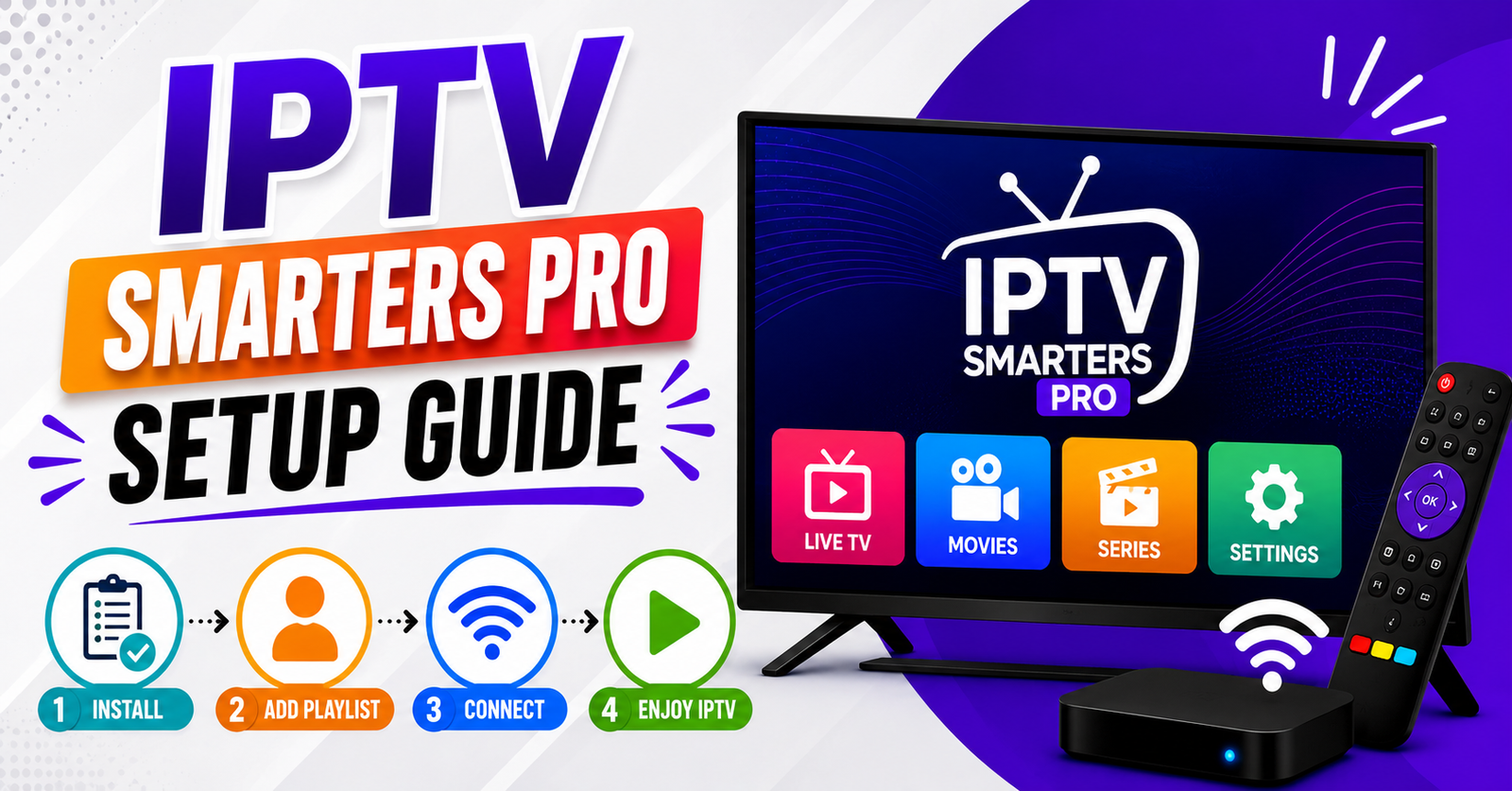
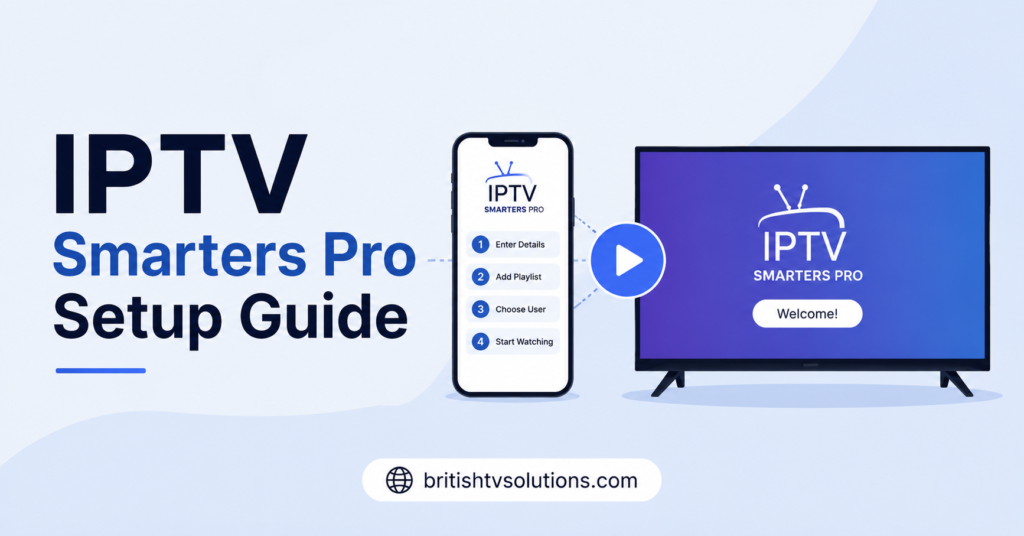
To set up IPTV Smarters Pro, you download the app on your device, open it, choose your login method (usually “Login with Xtream Codes API” or “Load Your Playlist or File/URL”), then type in the username, password, and server URL your provider gave you. Hit add, wait a few seconds for the channels to load, and you are in. That is the whole thing in one breath. Everything below just explains each part so nothing trips you up along the way.
What IPTV Smarters Pro Actually Is
Before the IPTV Smarters Pro setup guide gets into buttons and fields, it helps to know what you are even installing. IPTV Smarters Pro is a media player app. It does not give you any content on its own. Think of it like an empty TV remote that only works once you plug in a subscription from a provider. The app reads the login details you enter, talks to your provider’s server, and pulls your channel list and on-demand library into a tidy interface. No login details means an empty app. This matters because people often blame the app when the real issue sits with their subscription or the info they typed in.
Why So Many People Use This Player
The reason this app keeps showing up in every IPTV Smarters Pro setup guide is simple: it runs on nearly everything. Android phones, Android TV boxes, Amazon Fire Stick, iPhones, iPads, Windows, and Mac all support it in some form. The layout stays roughly the same across devices, so once you learn it on your phone, your TV box feels familiar. It also remembers your login, sorts channels into categories, and supports an EPG, which is the on-screen guide showing what is on now and next. For a free player, it punches well above its weight, which is exactly why UK IPTV resellers like recommending it to customers.
What You Need Before You Start
You cannot complete any IPTV Smarters Pro setup guide without three things from your provider first. These are your username, your password, and your server URL (sometimes called the host or portal). Some providers hand you a single M3U link instead, which bundles all three into one long web address. If you run a panel and supply these to customers yourself, keeping them clean and correct saves you a mountain of support messages. Many sellers source their lines and credits through a trusted IPTV reseller panel so the details they pass on are stable and tested before they ever reach a customer.
IPTV Smarters Pro Setup Guide for Android Phones
Android is the easiest place to begin. Open the Google Play Store, search for the app by name, and install it. Open it, accept the terms, and you land on a screen asking how you want to log in. Pick “Login with Xtream Codes API” if your provider gave you a separate username, password, and URL. Type each one carefully, give the connection any name you like, and tap add. The app verifies the details and loads your categories within seconds. If your provider only gave you an M3U link, choose the playlist option instead and paste that single link. Both roads lead to the same place.
IPTV Smarters Pro Setup Guide for Fire Stick
The Fire Stick is where most people get stuck, because the app is not always in Amazon’s store directly. You usually sideload it. First, go to your Fire Stick Settings, then My Fire TV, then Developer Options, and switch on “Apps from Unknown Sources”. Then install a tool like Downloader from the Amazon store, open it, and enter the download link for the app’s APK file that your provider or their guide supplies. Once it installs, open it and follow the same login steps as the phone version. Sideloading sounds technical but it is really just allowing one extra app to install from outside the store.
Pro Tip Callout
Pro Tip: Write your username, password, and server URL down somewhere before you start typing them on a TV. Entering long details with a remote is slow and easy to fumble. A single wrong character is the number one reason a connection fails, and it looks identical to a “dead” subscription. Check the typing before you blame anything else.
IPTV Smarters Pro Setup Guide for iPhone and iPad
Apple devices work a little differently. The app may appear under a slightly different name in the App Store depending on the region and the year, so search broadly and check the developer. Once installed, the login flow matches everything else: choose Xtream Codes API or playlist, enter your details, and add the connection. The main quirk on Apple is that some versions ask you to allow local network access or accept an extra prompt the first time. Say yes to those, otherwise the app cannot reach your provider’s server and you get a blank screen that makes you think something broke.
Setting Up the EPG and Categories
Once your channels load, the guide data, or EPG, usually fills in on its own if your provider supports it. The EPG is that grid showing current and upcoming programming. If it stays blank, give it a few minutes, since some servers push the data slowly on first load. You can also force a refresh inside the app’s settings. Categories work the same way: the app groups your channels into folders based on how your provider labelled them. If everything dumps into one giant messy list, that is a provider-side labelling choice, not an app fault, and only your provider can tidy it.
Login Methods Compared
Picking the right login method confuses beginners more than anything, so here is a clean breakdown of the two you will see in any IPTV Smarters Pro setup guide.
| Login Method | What You Enter | Best For |
|---|---|---|
| Xtream Codes API | Username, password, server URL | Most subscriptions, full EPG support |
| Playlist (M3U URL) | One single link | Quick setup, simple channel lists |
Most providers prefer the Xtream Codes route because it tends to give a fuller experience with better guide data and on-demand sorting. The playlist method is faster but can feel barer. If your provider gives you both, start with Xtream Codes.
Common Errors and How to Fix Them
Almost every problem falls into a short list. A wrong username or password throws an authentication error, so retype them slowly. A “connection failed” message often means the server URL is mistyped or your provider’s server is temporarily down. A blank channel list with a valid login usually means your subscription has not been activated yet or has expired. And buffering, where the picture freezes and reloads, is normally a slow internet connection or a congested server rather than the app itself. Sorting these out is mostly patience and double-checking, not deep tech skill.
Why Your Provider Matters More Than the App
Here is the honest truth this IPTV Smarters Pro setup guide will not dress up: the app is rarely your problem. The quality you get, the uptime, the buffering, the channel count, all of it comes from your provider’s infrastructure, not the player. A great app sitting on a weak, oversold server will still stutter. This is why people who resell take real care choosing where their service comes from. Many run their own service through a structured setup and buy IPTV credits UK side from established suppliers so their customers get stable streams instead of constant complaints.
The Legal Grey Area, Said Plainly
It would be dishonest to skip this. IPTV Smarters Pro the app is completely legal. It is just a player, the same way a web browser is legal. What sits in a grey or outright illegal area is the subscription you plug into it. Services that stream paid channels without proper licensing are not legitimate, and using them carries real risk depending on where you live. Legitimate IPTV exists too, where the provider holds the rights to what they offer. This guide covers how the app works, not a green light for any particular source. Choose providers who can show they operate properly, and understand what you are signing up for.
Setting Up for Multiple Devices
A lot of users want the same subscription on a phone, a TV box, and a tablet. Most subscriptions allow a set number of simultaneous connections, often one or two unless you pay for more. You can install the app on as many devices as you like, but you can only stream on the allowed number at once. If you try to exceed it, streams start dropping or refusing to load. UK IPTV Resellers managing customer accounts keep an eye on this, because a customer sharing one line across a whole household is the fastest route to constant “it stopped working” tickets.
Keeping Things Running Smoothly
After setup, maintenance is light. Keep the app updated when a new version appears, since updates fix bugs and login quirks. Restart the app if it ever feels sluggish. A wired internet connection beats Wi-Fi for a TV box if buffering bothers you. And if you suddenly lose everything, check whether your subscription simply expired before assuming the worst. For sellers, building a simple onboarding note for customers, covering these basics, slashes the number of repeat questions and frees up your time enormously.
Conclusion
The whole IPTV Smarters Pro setup guide really does come down to one loop: install the app, enter the username, password, and server URL from your provider, and let it load. Everything else, the EPG, the categories, the device quirks, the error messages, is just detail hanging off that core action. The app is reliable and free, so when something goes wrong, look first at your typing and then at your provider, almost never at the player itself.
Get those two right and IPTV Smarters Pro quietly does its job in the background, which is exactly what you want from it. Whether you are a single viewer or someone supplying dozens of customers, the same fundamentals carry you the whole way.
Surprise Section: Three Quick Checklists
Subscriber Checklist
If you are just setting it up for yourself, run through this:
- Got your username, password, and server URL (or M3U link) ready
- Installed the app from the correct store or sideloaded it on Fire Stick
- Chose the right login method (Xtream Codes for most people)
- Typed every detail carefully and double-checked it
- Waited for channels and EPG to fully load
- Tested on your usual internet, wired if possible for a TV box
Reseller Checklist
If you supply customers, this keeps complaints down:
- Source your service from a stable, properly run supplier
- Test every line before handing it to a customer
- Send clear setup instructions matched to the customer’s device
- Confirm how many connections each plan allows and tell the customer
- Keep a record of which login belongs to which customer
- Have a simple troubleshooting reply ready for the common errors above
Sub-reseller Checklist
If you sell under a bigger reseller, protect your own reputation:
- Understand exactly what your upstream provider guarantees on uptime
- Pass on accurate login details without altering them
- Never oversell connections beyond what a plan supports
- Keep your own customer contact list separate and organised
- Know who to escalate to upstream when a server issue is not your fault
- Build trust by responding quickly, even when the fix sits above you