
Samsung One UI 9 IPTV Apps: A Plain Guide for 2026
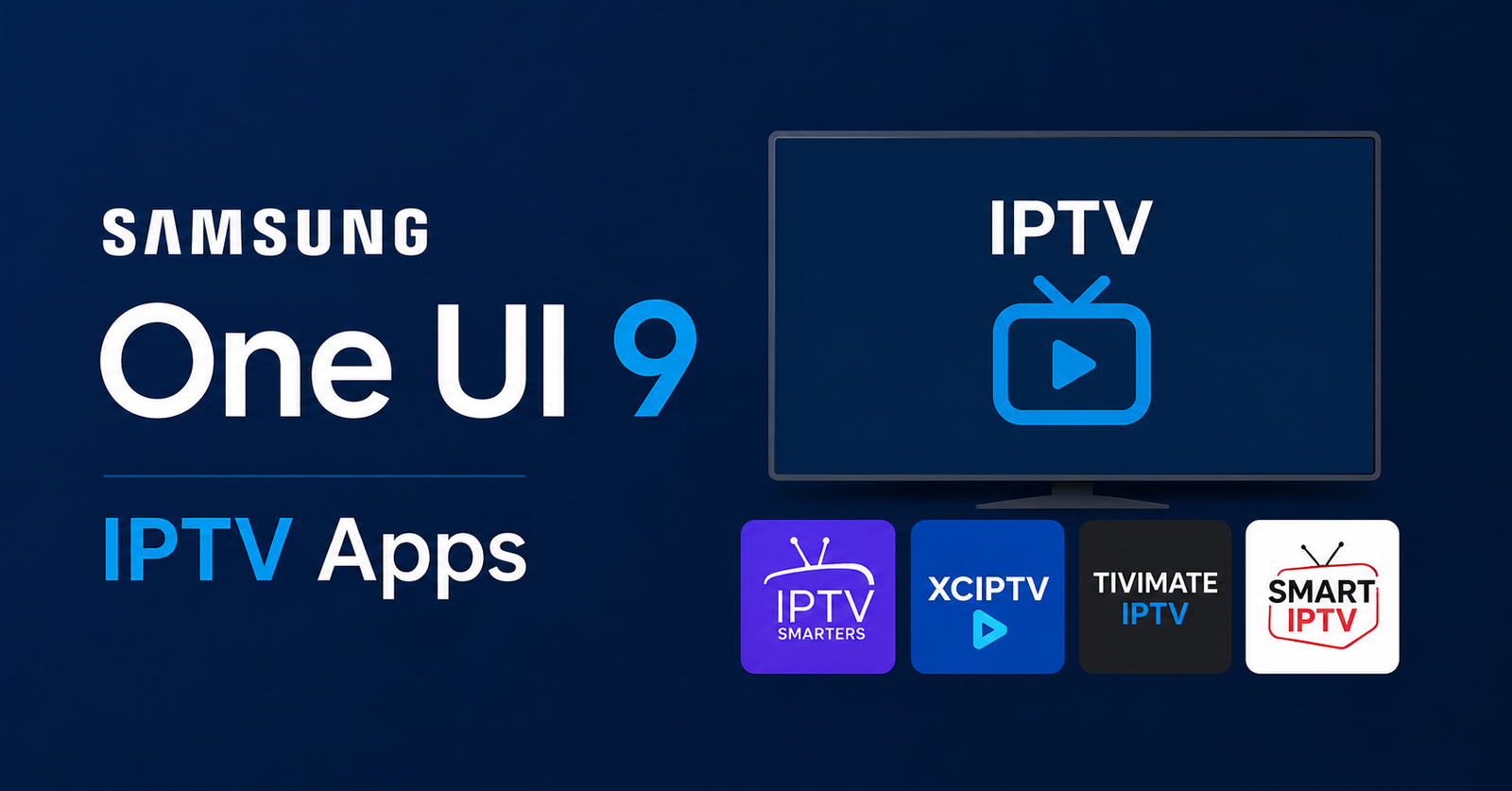
If you just updated your Samsung TV and you’re wondering which Samsung One UI 9 IPTV apps still work, here’s the short answer: most of the popular player apps still run fine, but a few older ones broke after the update, and Samsung tightened how apps get installed from outside the official store. So you can absolutely keep streaming, you just need to know which player to pick and how the new system handles installs. That’s exactly what this guide walks you through, step by step, in normal language.
The reason this matters is that One UI 9 is a bigger change than the usual yearly Samsung update. It reshuffled the home screen, changed some permission settings, and quietly retired support for a couple of app formats that older IPTV players depended on. If you’ve noticed an app suddenly refusing to open, or your channel list loading slower than before, the update is usually the culprit, not your subscription. Let’s clear all of that up.
What One UI 9 Actually Changed for Streaming
Think of One UI 9 as Samsung redecorating the whole house, not just swapping the furniture. The biggest shift for streaming is how the TV treats apps that didn’t come from Samsung’s own store. Before, you could load a player fairly freely. Now the system asks more questions, checks the app more carefully, and in some cases blocks formats it no longer trusts.
This is why some people feel their Samsung One UI 9 IPTV apps “stopped working” overnight. In most cases the app didn’t break, it just got flagged by the new install rules. The fix is usually picking a player that’s kept up with these changes rather than fighting with an outdated one. Samsung also moved several settings menus around, so the buttons you used last year may now live somewhere else entirely.
One more thing worth knowing: the update improved how the TV handles video decoding in the background. That’s good news, because it means smoother playback once your app is set up correctly. The pain is only in the setup stage, not the watching stage.
Which Samsung One UI 9 IPTV Apps Still Work
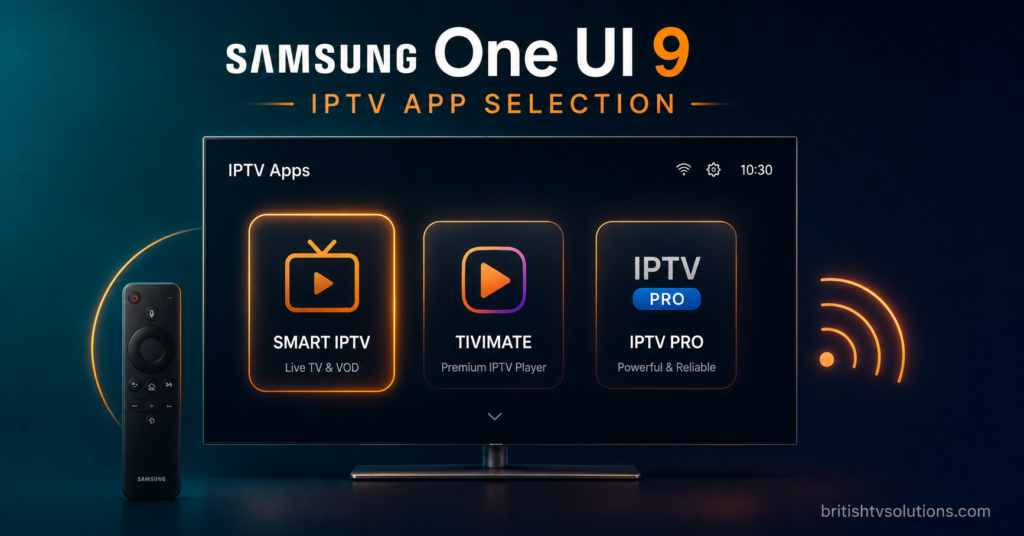
Here’s the part most people actually came for. Not every player survived the update equally, so it helps to know the categories rather than memorising a list. Broadly, the apps that work fall into three buckets, and your TV’s age decides which bucket you’re in.
The first bucket is the well-known general player apps that get frequent updates. These adapted quickly to One UI 9 and remain the safest choice for most users. The second bucket is lightweight players built specifically for smart TV systems, which tend to be lean and fast but offer fewer extra features. The third bucket is rebranded provider apps, where your IPTV service gives you their own branded application that only needs a username and password, like the approach used by some established sellers in the space.
Below is a simple comparison to help you see the trade-offs at a glance.
| App Type | Best For | Trade-Off |
|---|---|---|
| General player apps | Most users, frequent updates | Can feel feature-heavy |
| Lightweight TV players | Speed, older TVs | Fewer extra options |
| Rebranded provider apps | Simplicity, no setup | Tied to one provider |
Pro Tip: Before installing anything, check the app’s last update date. Any player updated within the last few months almost certainly already supports One UI 9. An app last touched a year ago is the one likely to give you trouble.
If you’d rather skip the guesswork entirely, some services hand you a ready-made branded app so you never deal with formats or install warnings at all. This is part of why many people start looking at a proper UK IPTV streaming service that supplies its own app rather than asking you to source one yourself.
Setting Up Samsung One UI 9 IPTV Apps Step by Step
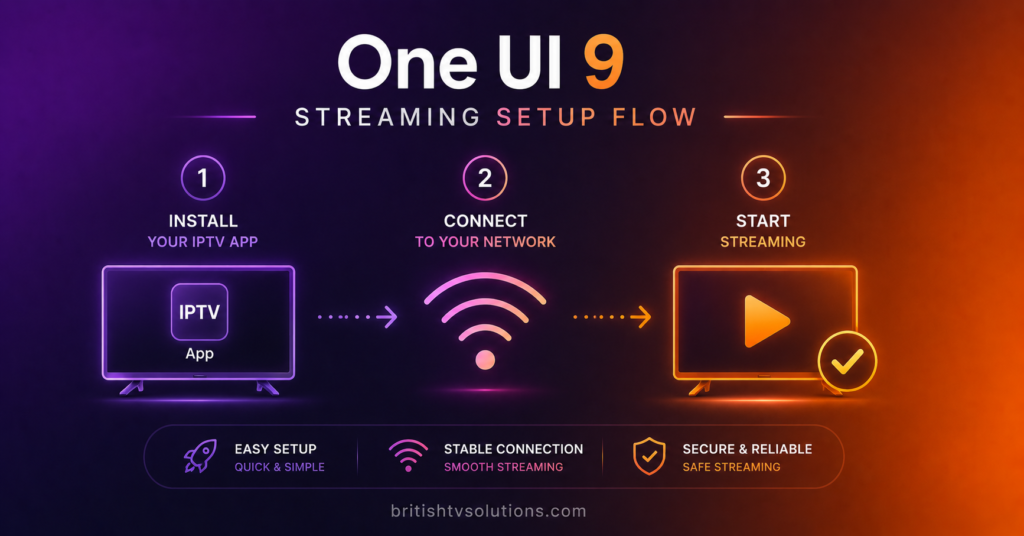
Setup sounds intimidating after a big update, but it really comes down to a handful of steps. The order matters more than anything technical, so follow it as written and you’ll avoid the common dead ends.
Start by making sure your TV is fully updated. It sounds backwards, but One UI 9 often arrives in pieces, and a half-updated TV causes more app errors than a fully updated one. Go into the settings, check for software updates, and let it finish completely before you touch any app.
Next, decide your install route. If your provider gives you a branded app, you simply search for it or load it using the details they sent you. If you’re using a general player, you’ll find it through the TV’s app search. The new system will likely show a permission prompt, which is normal under One UI 9, and you approve it to continue.
Once installed, the app will ask for your login or a playlist link. This is where your subscription details come in. Enter them exactly as provided, because a single wrong character is the number one reason a channel list fails to load. After that, give it a minute to pull the full list, and you’re watching.
Pro Tip: If the app installs but shows a blank screen, close it fully and reopen it once. One UI 9 sometimes needs a second launch to grant the app proper background permission. This fixes blank screens far more often than reinstalling does.
Why Some Samsung One UI 9 IPTV Apps Buffer or Freeze
Buffering is the complaint that drives people up the wall, and after a system update it’s easy to blame the wrong thing. The truth is that most buffering on Samsung One UI 9 IPTV apps traces back to one of three causes, and only one of them is the app itself.
The first cause is network speed. Streaming live channels needs a steady connection, and if your TV is far from the router or sharing bandwidth with a dozen other devices, the app simply can’t pull data fast enough. The second cause is the app’s buffer setting, which some players let you adjust, trading a slightly longer start time for far smoother playback. The third cause is server load on the provider’s side, which has nothing to do with your TV at all.
This matters because people often reinstall their app five times when the real issue was a weak wifi signal or an overloaded server. Diagnosing the right cause saves hours. A quick way to test is to play the same stream on your phone using mobile data. If it’s smooth on your phone but stutters on the TV, the problem is your home network, not your subscription or the app.
For anyone running a service rather than just watching, buffering complaints are also a server-side concern, which is where a properly managed IPTV reseller panel makes a real difference to how stable streams feel for end users.
Comparing the Old System and One UI 9
To really understand why your setup changed, it helps to see the before and after side by side. The differences aren’t huge in number, but each one affects how you install and run your apps.
| Feature | Before One UI 9 | With One UI 9 |
|---|---|---|
| Outside app installs | Mostly open | More checks and prompts |
| Settings layout | Familiar menus | Reorganised locations |
| Background decoding | Standard | Improved, smoother |
As you can see, the update is mostly a security and tidiness change wrapped in a fresh look. None of it stops you from streaming. It just asks you to be a little more deliberate during setup than you used to be, and once you’re past that stage the experience is genuinely better than before.
Choosing Between a Player App and a Provider App
This is the decision most people get stuck on, so let’s make it simple. A player app is like buying an empty bookshelf, you bring your own content details and arrange them yourself. A provider app is like buying a shelf that arrives already filled, you just open it and everything’s there.
Player apps give you flexibility. You can switch providers, tweak settings, and use the same app even if you change services later. The downside is that you handle the setup and any troubleshooting yourself. Provider apps trade that flexibility for sheer ease. There’s almost nothing to configure, but you’re tied to that one provider’s app and system.
Neither is wrong. If you love control and don’t mind a little setup, go player. If you want to turn the TV on and watch without thinking, go provider. Many newcomers start with a provider app for the simplicity, then explore player apps later once they’re comfortable. Some sellers, such as those operating through britishseller.co.uk, lean into the provider-app model precisely because it removes the install headaches that One UI 9 introduced.
Staying on the Right Side of the Law
It’s worth being honest here rather than glossing over it. The legality of IPTV depends entirely on whether the content being streamed is properly licensed. A player app itself is just a tool, the same way a web browser is just a tool. What matters is the source feeding it.
Legitimate services are upfront about being a streaming access provider, they don’t claim to own broadcast content, and they tell you that you’re responsible for following the laws in your own country. That’s the responsible model. If a service makes promises that sound too good or too cheap, that’s usually a sign the content side isn’t above board. The grey area is real, so the sensible move is sticking to providers who are transparent about how their service works and what you’re actually paying for.
Getting the Best Picture Quality on One UI 9
Picture quality is partly your app, partly your TV, and partly your connection working together. One UI 9 actually helps here thanks to its improved decoding, but you can squeeze out more with a few habits. Wherever possible, connect your TV to the router with a cable rather than wifi, because a wired connection is the single biggest upgrade to stream stability.
Inside your app, look for a quality or resolution setting and match it to your TV rather than forcing the highest option on a connection that can’t sustain it. A steady clear stream beats a sharp stuttering one every time. And keep the app updated, since each update tends to improve how well it talks to the new One UI 9 system. These small things compound into a noticeably better experience.
Conclusion
The headline worry around Samsung One UI 9 IPTV apps is bigger than the reality. Yes, the update changed how apps install, moved some settings, and retired a couple of old formats, but it didn’t lock you out of streaming. Once you pick a player that’s kept current, or use a provider’s own branded app, the setup is short and the actual viewing is smoother than it was before thanks to the improved decoding under the hood.
Everything that felt broken was really just the new install rules doing their job. Choose a maintained app, follow the setup order, sort out your network, and your Samsung TV will handle One UI 9 streaming without complaint. The update asks for a few minutes of patience up front, and it rewards you with a steadier experience after.
Your Quick-Start Checklists
Different people use this in different ways, so here are three short checklists depending on where you sit.
Subscriber Checklist
- Fully update your TV to One UI 9 before installing anything
- Pick a player app updated within the last few months, or use your provider’s branded app
- Enter login or playlist details exactly, character for character
- Test a stream on your phone first if buffering appears
- Connect by cable instead of wifi where you can
Reseller Checklist
- Confirm your panel and apps support One UI 9 before onboarding customers
- Offer a branded app option to cut down install-related support tickets
- Monitor server load so buffering complaints stay low
- Keep a simple setup guide ready for the new permission prompts
- Be transparent with customers about what the service is and isn’t
Sub-Reseller Checklist
- Check which apps your upstream supplier officially supports on One UI 9
- Pass clear, plain setup steps down to your own customers
- Flag any app that hasn’t updated recently before recommending it
- Keep your credit and account details organised for quick activation
- Point customers to honest, compliant services rather than too-cheap promises